Advanced Interface
This chapter introduces more advanced automation interfaces. You can use these interfaces to perform various detailed operations. This chapter contains a lot of content; if you are encountering it for the first time, we recommend reading through each part patiently.
Tip
When writing automation code, you can directly type the command lamda in the terminal on the right side of the remote desktop and execute the following test code therein, or perform element selection and click tests yourself, which can speed up the process of writing and verification.
Getting Elements
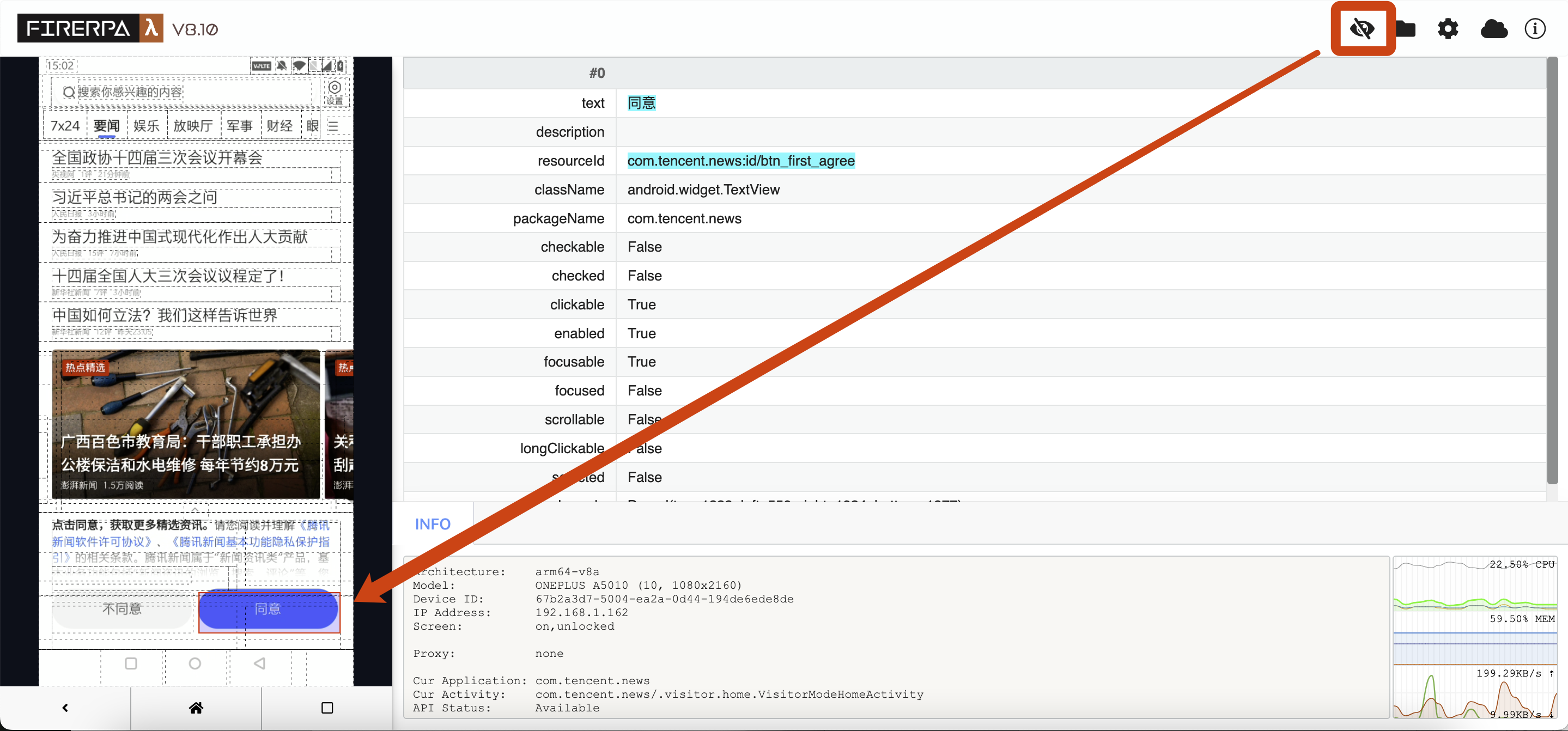
You may have already gained some understanding of it in the basics or previous chapters. You need to locate the relevant element through a selector before you can perform operations. You should also have seen where selector parameters can be obtained. The following introduction will focus on this element. You can see information about the "Agree" element on the right side of this image.
Attention
The element you directly click on the left interface may not be the actual element, because it may overlap with other elements in size and position. Usually, multiple elements with overlapping positions or sizes will be displayed in the information bar on the right; you can scroll up and down to see which one is truly needed. You can also manually traverse all elements by pressing the TAB key on the left selection interface.
For the above element, we generally obtain it through text. The condition for using text is that no other element on the current interface has the text "Agree"; this is the simplest method. Alternatively, you can also use resourceId, but note that resourceId here does not represent a unique ID—it represents the resource ID, and a single interface may contain many elements with the same resource ID. Other fields such as packageName, checkable, etc. are generally not commonly used, but if text, resourceId, description, etc. are all unavailable, you can try using these fields. We can obtain this element in the following ways.
element = d(text="同意")
element = d(text="同意", resourceId="com.tencent.news:id/btm_first_agree")
element = d(resourceId="com.tencent.news:id/btm_first_agree")
Clicking Elements
Call the following interface to perform a normal element click operation; in context, this achieves the effect of manually clicking "Agree".
element.click()
If you need to specify the position on the element to click, you can specify the corner parameter when calling the click interface. For example, Corner.COR_CENTER represents clicking the center point of the element; you can also click its top-left corner or bottom-right corner (Corner.COR_BOTTOMRIGHT).
element.click_exists(corner=Corner.COR_TOPLEFT)
Performs a long-press operation on this element; throws an exception if it does not exist. This interface also supports corner and can specify the long-press duration.
element.long_click(timeout=0) # milliseconds
Clicks the element if it exists; if the element does not exist, calling this interface will not raise an exception. This interface also supports corner.
element.click_exists()
>>> element.click_exists()
True
Existence Check
In many cases, before proceeding with further operations, you need to check the existence of an element. Otherwise, subsequent flows may encounter exceptions, or even perform incorrect operations on the wrong interface. In such cases, you can use the following interface to determine existence.
element.exists()
Element Information
In some cases, you may want to obtain partial information about an element, such as element coordinates, region information, or string information such as text and description on the element. You can read element information through the following interface.
element.info()
For our test element above, the output information is as follows.
>>> info = element.info()
>>> print (info)
bounds { ... }
className: "android.widget.TextView"
clickable: true
enabled: true
focusable: true
packageName: "com.tencent.news"
resourceName: "com.tencent.news:id/btn_first_agree"
text: "\345\220\214\346\204\217"
visibleBounds { ... }
Hint
You may notice that some fields are missing from the printed information above, such as description. This usually indicates that the field value is empty or false; you can still access the relevant fields normally through properties to obtain their values.
As you can see, this information is somewhat complex; this is the default protobuf print format. You can directly access the corresponding attributes to print out the actual values. For example, if you want to read the element's text value, you can use it directly as follows.
>>> info = element.info()
>>> print (info.text)
同意
Of course, there is also some information related to element region coordinates, which you can also access. For example, if you now want to obtain the region information corresponding to this element, you can print the region information as follows, or save it as a variable for later use.
>>> info = element.info()
>>> print (info.bounds)
top: 947
left: 338
bottom: 997
right: 743
The output or returned value is a region information object (Bounds), which you will find is also a parameter used by certain screenshot interfaces. You can pass this parameter to the screenshot interface to capture the element individually. However, we have already encapsulated a simpler method for you.
You may also want to obtain the width and height of the element to calculate offsets, for example, to calculate the relative offset of other elements. You can use:
>>> info = element.info()
>>> print (info.bounds.width, info.bounds.height)
484 138
Or obtain the center point or corner points of the element, such as top-left, bottom-right, etc. The following interfaces usually return a Point object; you can also get the corresponding X and Y device screen coordinates from the Point object.
>>> info = element.info()
>>> print (info.bounds.center())
x: 792
y: 1908
>>> print (info.bounds.center().x)
792
The following call is used to obtain the corner coordinates of the element. The example obtains the coordinates of the element's top-left corner; in addition, it also supports obtaining coordinates of all four corners, including bottom-right, top-right, bottom-left, etc.
>>> info = element.info()
>>> print (info.bounds.corner("top-left"))
x: 550
y: 1839
>>> print (info.bounds.corner("top-left").x)
550
Element Iteration
You can also iterate over all elements selected by the selector. Under normal circumstances, the selector in the current context may match only one element. If you want to test iteration, please select a selector that will match multiple elements. You can use a for loop or other methods directly on the selector to iterate.
for i in element: print (i.info())
Or if you know there are multiple matching elements and want to obtain the specified Nth matching element, you can use the following method.
element_3rd = element.get(3)
Element Counting
Normally, you will not use this interface directly. The following call can obtain the number of elements currently matched by your selector.
>>> element.count()
1
Element Screenshot
We support element-level screenshots, allowing you to capture an image of an element individually without taking a full-screen screenshot and then cropping it.
element.screenshot(quality=60)
After taking the screenshot, you can directly use the getvalue() method to obtain the binary data of the screenshot, or directly pass it to PIL.Image.
>>> element.screenshot(quality=60).getvalue()
b'\xff\xd8\xff\xe0\x00\x10JFIF\x00\x01\x01\x00\x00\x01\x00\x01\x00\x00\xff\xe2\x02(ICC_PROFILE\x00\x01\x01\x00\x00\x02\x18\x00\x00\x00\x00\x02\x10\x00\x00mntrRGB XYZ \x00\x00...
Or if you do not need further processing, you can also choose to save the screenshot directly to a local file.
>>> element.screenshot(quality=60).save("image.png")
Waiting for Elements
In some cases, you may need to determine whether the current page has finished loading. You can usually determine whether the page has finished loading by checking whether the relevant element has appeared. The following example waits for the "Agree" element to appear, with a maximum wait time of 10 seconds.
Hint
The wait duration here is in milliseconds, so for 10 seconds you need to multiply by 1000; 10 seconds = 10,000 milliseconds.
element.wait_for_exists(10*1000)
>>> element.wait_for_exists(10*1000)
True
Additionally, we also support waiting for an element to disappear, i.e., waiting for the element to be removed from the interface.
element.wait_until_gone(10*1000)
>>> element.wait_until_gone(10*1000)
False
Text Input
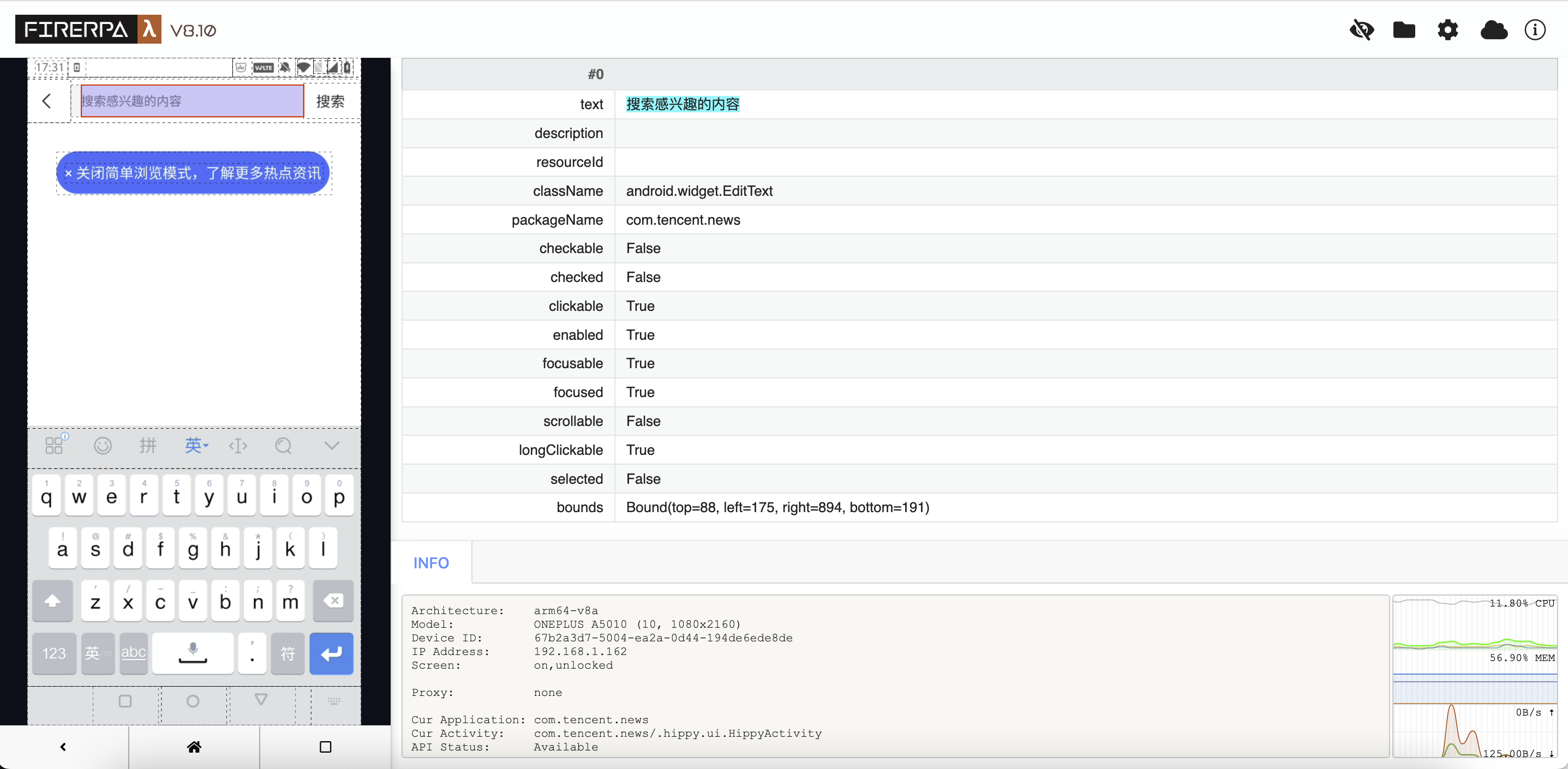
Text input is an area that requires attention. We cannot input text into a button, because that is a button. Now let us select an input field element again for introduction; the basic information of this element is shown below.
Attention
There are some important points when obtaining input field elements: note that when obtaining an input field element, your keyboard must be in the popped-up state, and then look for the relevant element; it is recommended to search carefully, otherwise what you obtain may not be the actual input field.
Hint
In automation workflows, to put the keyboard in the popped-up state, you only need to first click the input field displayed in the parent container in your code.
For the input field above, we can call the following interface to input the string "你好世界" (Hello World) into it. You can also input English or other Unicode strings; simply use it as follows to enter text in the field.
>>> element = d(text="搜索感兴趣的内容")
>>> element.set_text("你好世界")
True
If you want to obtain the text content currently displayed in the input field, you can call it like this.
Attention
Note that here we have changed the selector. The initial selector used the text property, but after entering text, the element content changed, causing the original selector to no longer match; therefore, we switched to another selector. Choosing an appropriate selector is important, but this example is for demonstration only, so it is merely shown as such.
>>> element = d(className="android.widget.EditText")
>>> element.get_text()
'你好世界'
You can also clear the currently entered content. Usually, when entering text, the existing text is automatically cleared, but you can also clear it manually.
Hint
Using the key event interface to repeatedly press the BACKSPACE key in a loop can also achieve a similar effect.
>>> element = d(className="android.widget.EditText")
>>> element.clear_text_field( )
True
Note
In extreme cases, there may be places where this interface cannot be used normally for text input; we are working on supporting it.
Standard Swipe
Use the following interface to perform swipe operations on the interface, such as swiping up and down a list to turn pages. The following call performs an upward swipe; the larger the step value, the slower the swipe speed, which is more suitable for swipes that require higher precision.
Attention
In simple cases, this operation does not require a selector parameter. If you encounter a situation where swiping cannot be performed, set the selector condition to a suitable element yourself, such as an element with the scrollable attribute or the first-level container of the list.
d().swipe(direction=Direction.DIR_UP, step=32)
>>> element = d(resourceId="com.tencent.news:id/important_list_content")
>>> element.swipe(direction=Direction.DIR_UP, step=32)
True
| Direction Indicator | Description |
|---|---|
| Direction.DIR_UP | Swipe up |
| Direction.DIR_LEFT | Swipe left |
| Direction.DIR_DOWN | Swipe down |
| Direction.DIR_RIGHT | Swipe right |
Fling
Fling is similar to the behavior of a person quickly swiping; this operation quickly flings the screen, suitable for simulating fast-browsing operations. The following example flings the screen from top to bottom; in the example, the selector is empty, but you still need to decide whether to fill in a selector based on the actual situation.
d().fling_from_top_to_bottom()
Fling from bottom to top:
d().fling_from_bottom_to_top()
Fling from left to right:
d().fling_from_left_to_right()
Fling from right to left:
d().fling_from_right_to_left()
Attention
In simple cases, this operation does not require a selector parameter. If you encounter a situation where flinging cannot be performed, set the selector condition to a suitable element yourself, such as an element with the scrollable attribute or the first-level container of the list.
>>> element = d(resourceId="com.tencent.news:id/important_list_content")
>>> element.fling_from_bottom_to_top()
True
Element Drag
Drags the element to the position of another element (such as dragging an app icon into a folder).
element.drag_to(Selector(text="购物")) # Drag to the position of the target element
Child and Sibling Queries
For elements that are duplicated or lack distinct characteristics, you can first locate the parent container, then use child to get child elements and sibling to get sibling elements to narrow down the scope.
form = d(resourceId="login_form")              # Locate the parent container
form.child().get(1)                            # Get the first child element under form
form.sibling(textContains="找回密码")           # Get a sibling element of form whose text contains "找回密码"

# The following is a slightly more complex query
# Get the first result matching resourceId=com.example.com:id/resource, select its child node with resourceId=com.example.com:id/abc, then query elements under this child node whose description contains "一天内", and output its information.
d(resourceId="com.example.com:id/resource").get(0).child(resourceId="com.example.com:id/abc").child(descriptionContains="一天内").info()
For the following example layout information, you can use the query method below to precisely select this element.
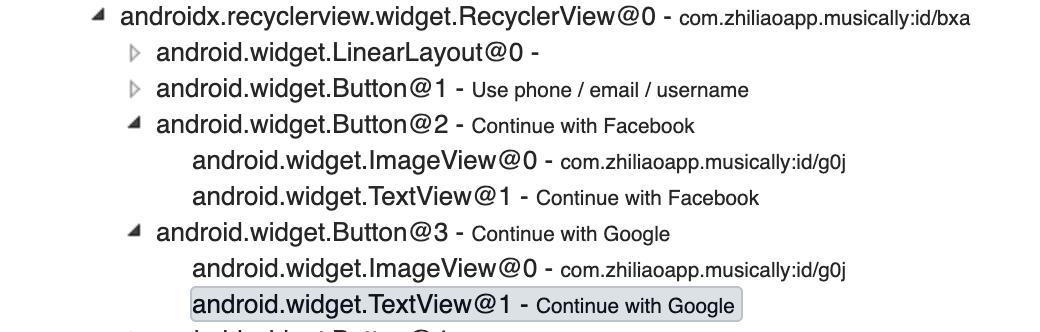
d(resourceId="com.zhiliaoapp.musically:id/bxa").child().get(3).child().get(1).info()
Hint
In most cases, you do not need to use such precise child sibling query statements; a single d(text="Continue with Google") is sufficient, except when the element truly cannot be located by text.
Uniform-Speed Scroll
Slides with a fixed step length step; more mechanical than swipe, suitable for scenarios that require stable stepping.
d().scroll_from_top_to_bottom(step=60)    # Down
d().scroll_from_bottom_to_top(step=60)    # Up
d().scroll_from_left_to_right(step=60)    # Right
d().scroll_from_right_to_left(step=60)    # Left