IDA Debugging
This chapter will introduce how to use FIRERPA and its related features and scripts to quickly debug Android applications. Our demonstration environment is Android 10, the host system is Ubuntu 22.04, with IDA 7.5 (Wine), ADB, JDB, Python, and other tools installed. It is recommended that your IDA version is not lower than 7.5, and install the latest version of the FIRERPA server.
Set to Debuggable Mode
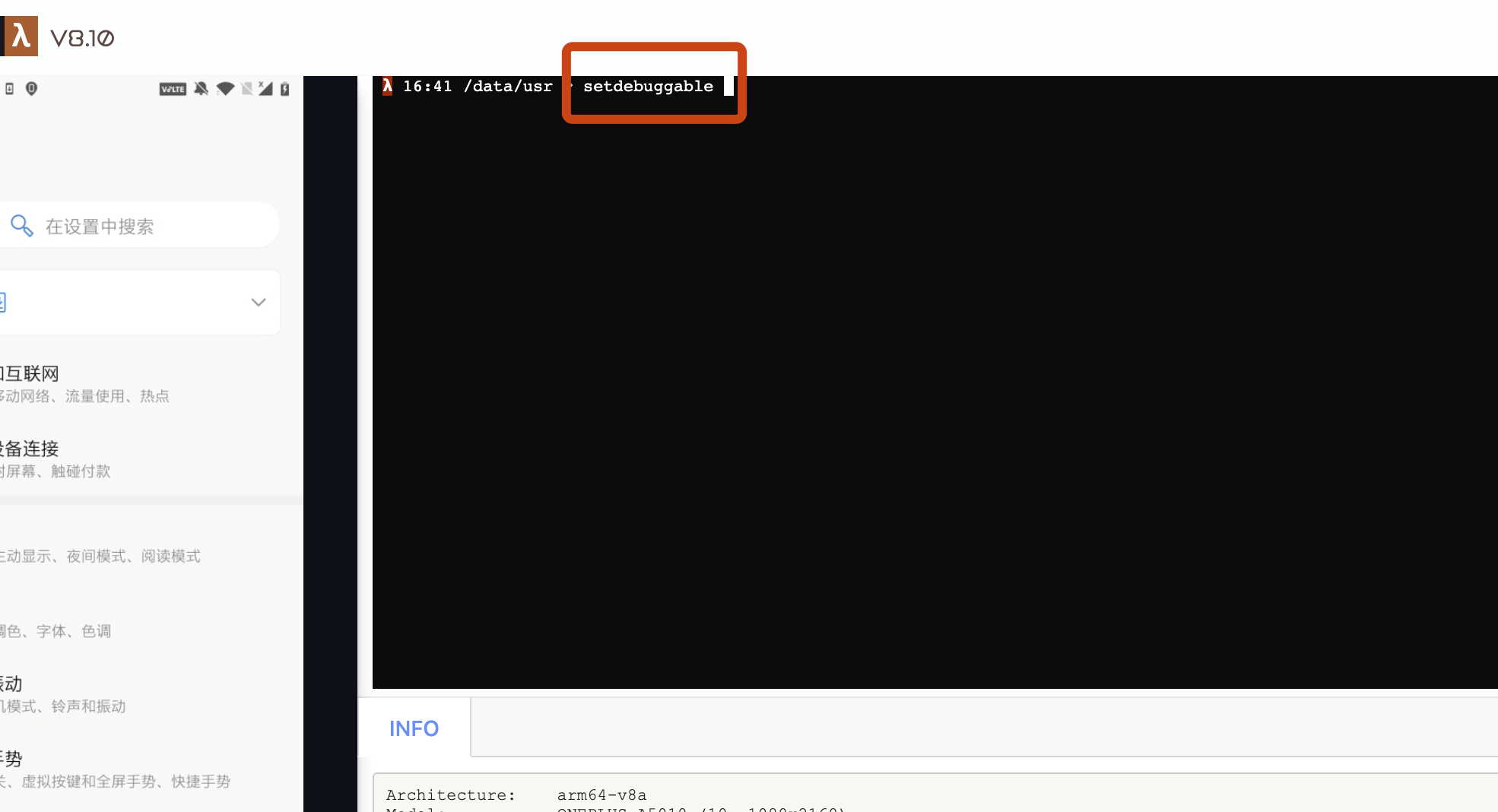
If your system is already in debug mode, this step is not needed. Otherwise, open the FIRERPA remote desktop and enter setdebuggable in the terminal. After executing this command, your phone will undergo a soft reboot, but don't worry; it will fully recover in about two minutes. At this point, your phone has entered debuggable mode.
Install IDA Debugging Service
Before starting debugging, you also need to upload the IDA Android debugging server to the device. In the dbgsrv folder under the IDA installation directory, you can find android_server and android_server64. If the target app uses 32-bit dynamic libraries, use android_server; otherwise use android_server64. Drag and drop the required file to upload or send it to the Android device via adb push, and grant executable permissions:
chmod 755 android_server*
After granting executable permissions, start the android_server service. You can run the executable via adb (root privileges required) or the remote desktop terminal. For Android 10 and later, you need to set the IDA_LIBC_PATH environment variable beforehand:
IDA_LIBC_PATH=/apex/com.android.runtime/lib64/bionic/libc.so ./android_server64 -kk
Note
If the debug target is a 32-bit application, please change IDA_LIBC_PATH to /apex/com.android.runtime/lib/bionic/libc.so and use the 32-bit android_server debugging service.
Forward IDA Debugging Service
For scenarios like debugging that require high real-time performance and responsiveness, it is recommended to use a USB connection. Ensure the device is connected to the current computer via USB and ADB authorization is completed, then execute the following command:
adb forward tcp:23946 tcp:23946
Note
23946 is the default listening port of IDA android_server. If you modified the port when starting, specify the actual port number when forwarding.
Start Application Debugging
We have provided an encapsulated script that can automatically complete most of the subsequent operations. You just need to follow the script's output prompts. You can find the ida.py script in the project's tools directory and run it with the following command:
python3 ida.py -d 192.168.0.2 -a com.android.settings
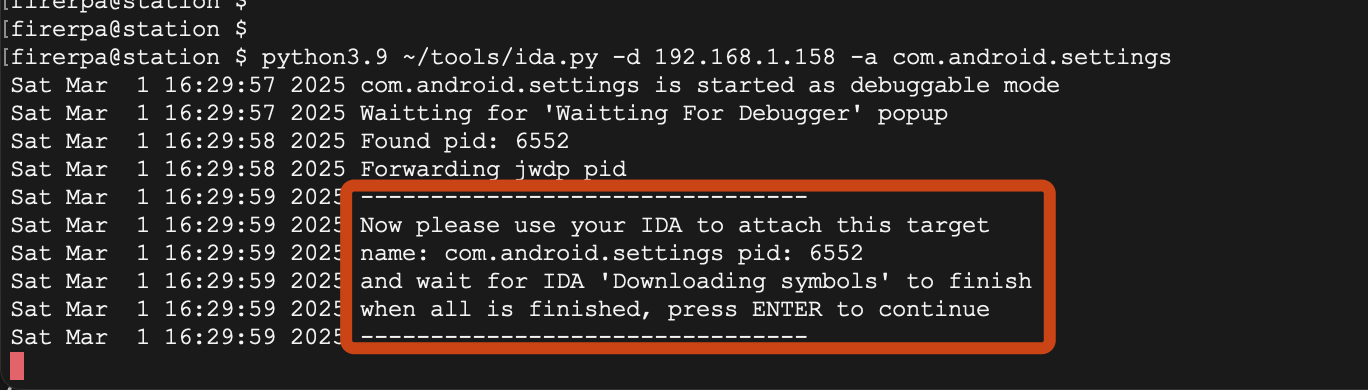
Where -d parameter is the device IP, i.e., the IP of the device running the FIRERPA service; -a parameter is the package name of the target application. After executing the command, the script will prompt you to attach the debugger to the application process in IDA.
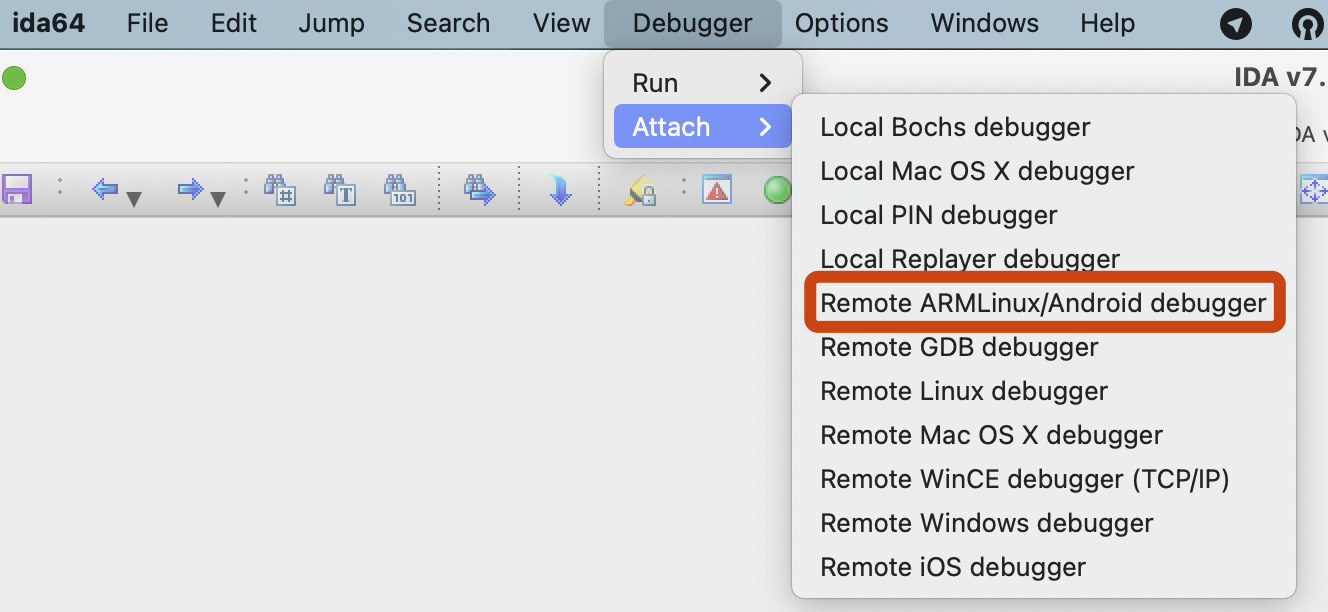
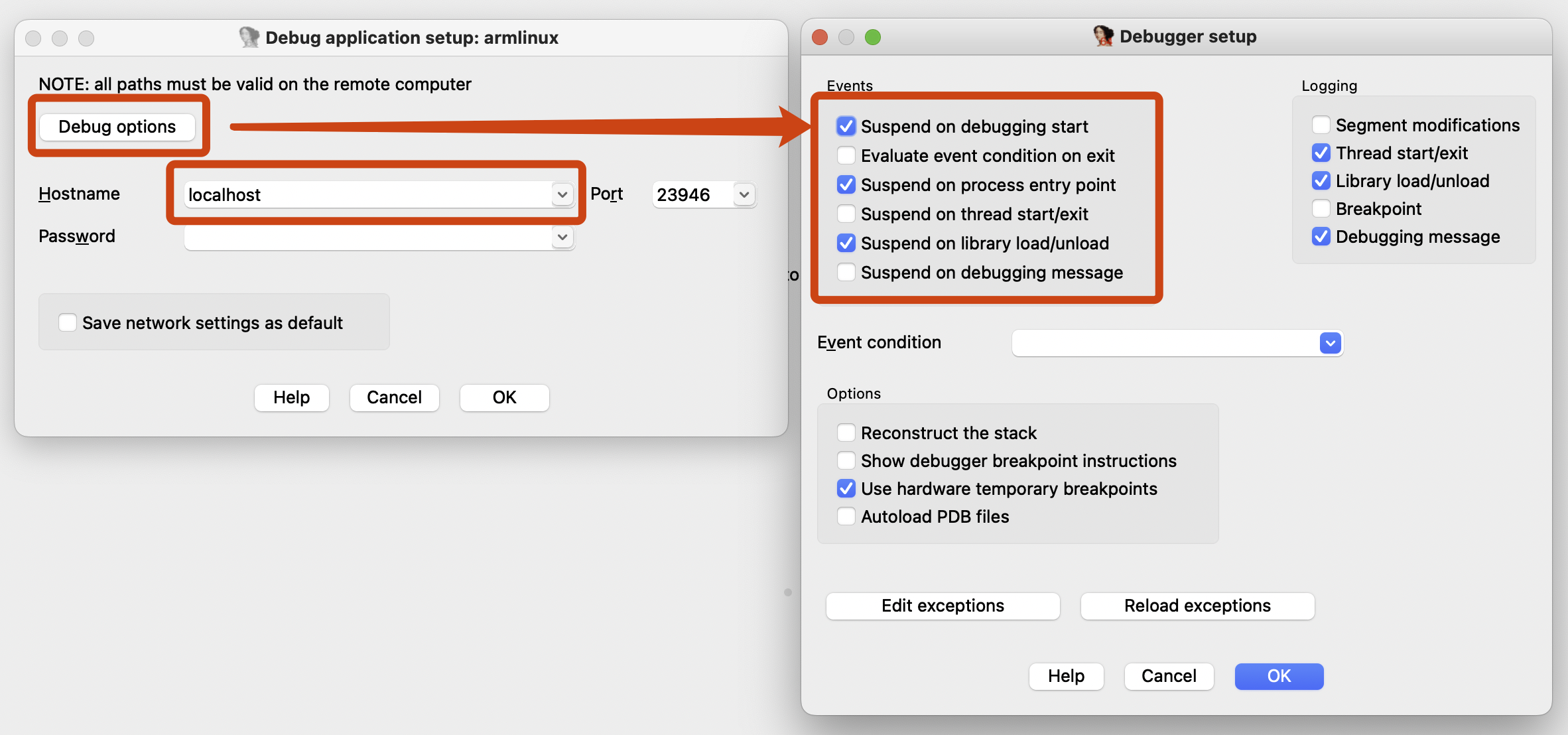
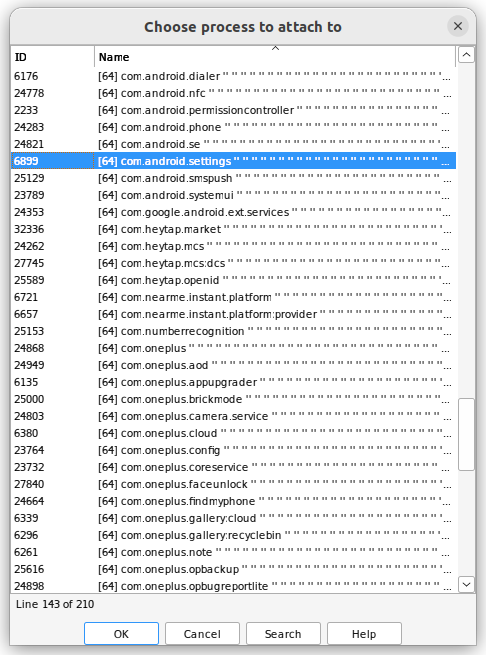
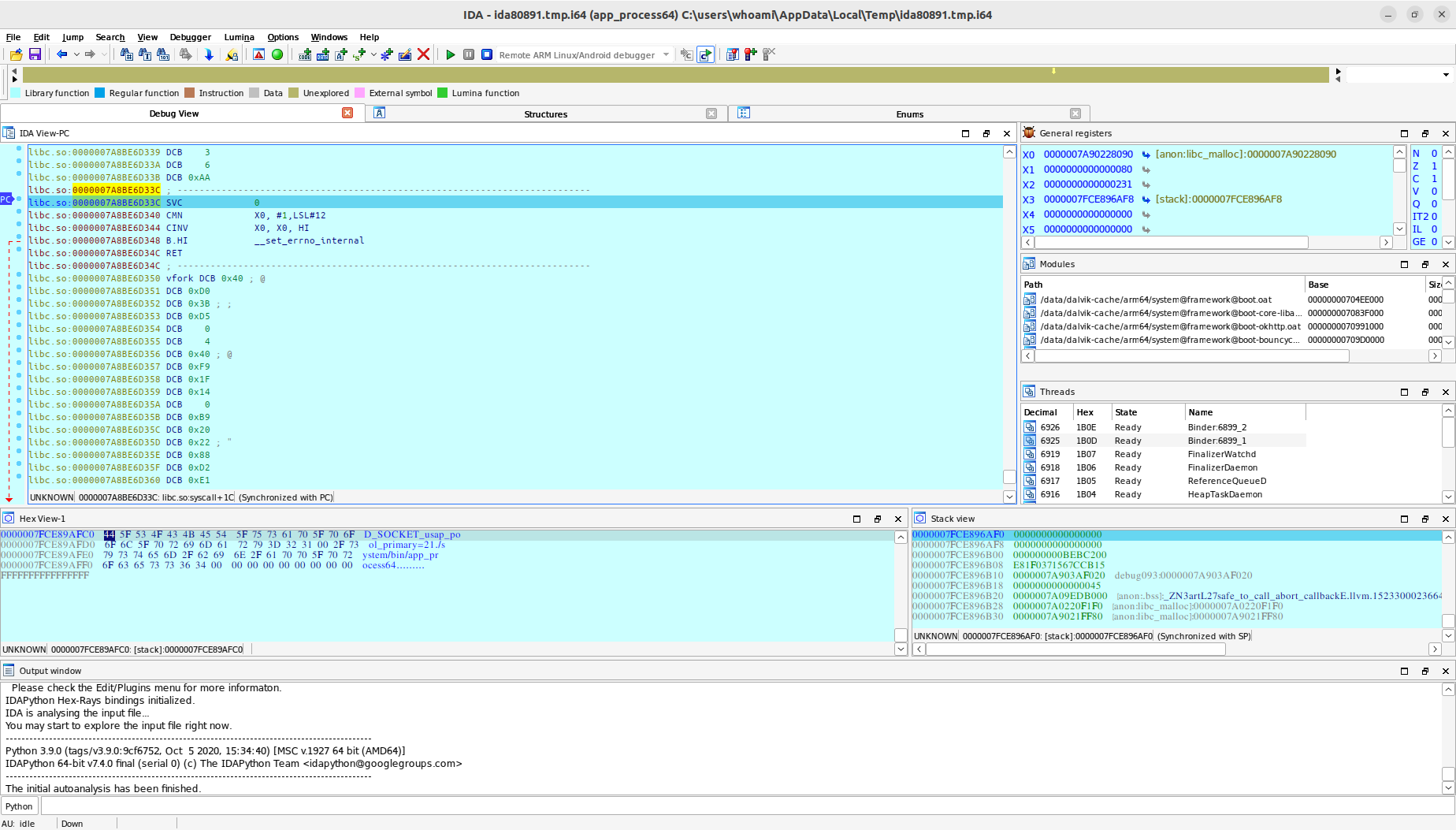
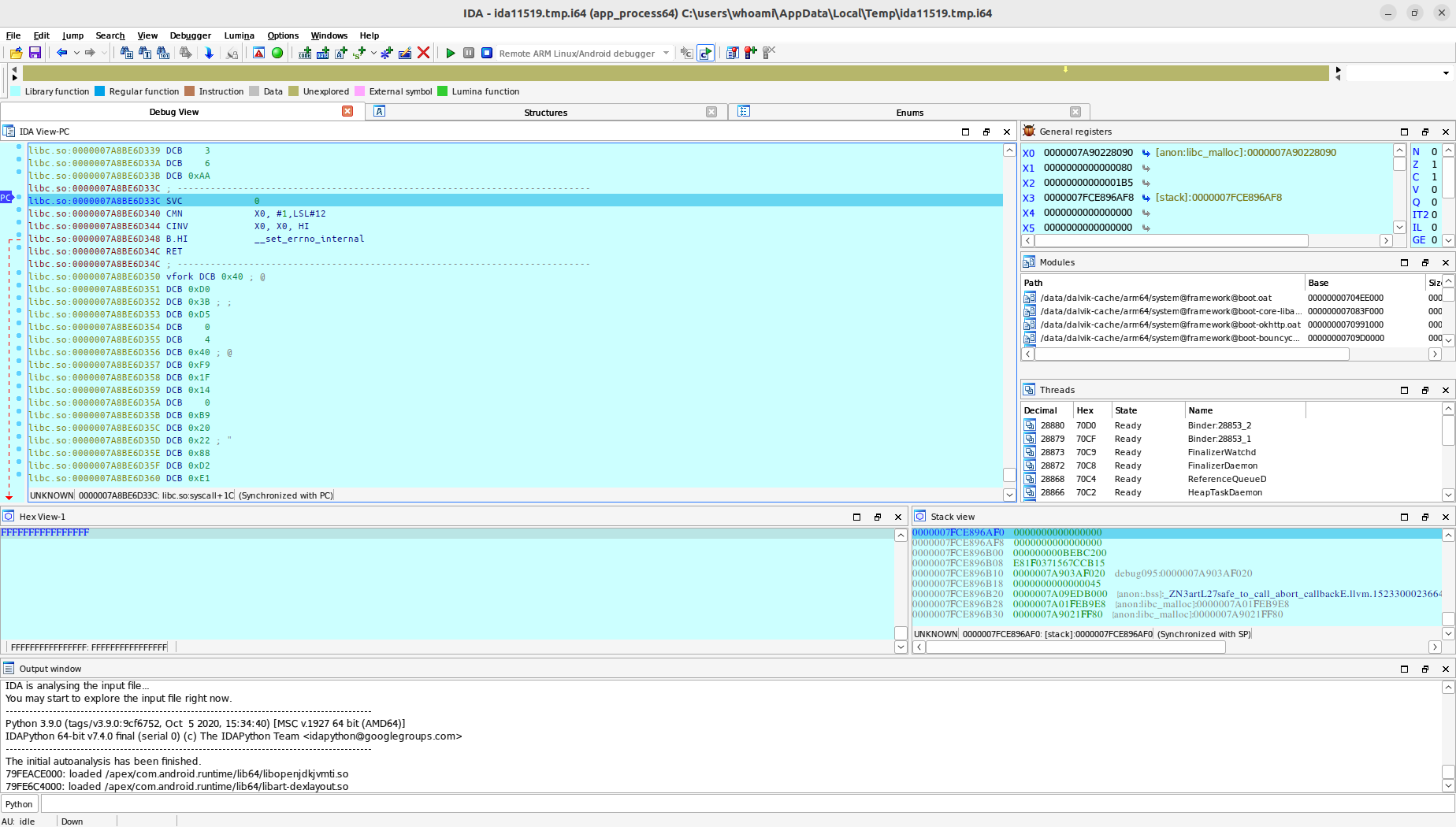
Everything is ready. Return to the ida.py command line interface, press Enter, and then you can continue debugging.