Quick Start
This article guides you through getting started with FIRERPA in the simplest way. Before you begin, make sure you have an Android phone. To take full advantage of all FIRERPA features, your Android device should ideally have root access. Of course, FIRERPA also supports running under shell (non-root) permissions; some privileged features will be limited, but you can still use most of the core functionality.

Hint
Make sure the software versions you are using are the latest. The documentation progresses step by step, so it is recommended to read from Chapter 1 in order.
To simplify your usage, before starting, you need to determine which environment your device has and treat them separately.
With Root Access
Please click this link to download the FIRERPA service app firerpa.apk. After installation, open the app and grant it root permission, then wait for the service download and installation to complete. Click the Start Service button, and if you need it to start on boot, turn on the auto-start switch.
Without Root Access
If your device does not have root access or you are not sure what root is, you need to install the service in the following way. You still need to install the FIRERPA service app firerpa.apk first. After installation, continue to download and install Shizuku.apk. After installation, refer to the official documentation Shizuku User Manual and How to Unlock Developer Options on an Android Phone to complete service startup and setup. Then reopen our app and wait for the service download and installation to complete. Make sure Shizuku is authorized. Once everything is done, click the Start Service button.
Attention
On some devices, the app's default auto-start behavior may be blocked by the system. In that case, you may need to find the relevant settings yourself and allow our app to auto-start or add our app to the auto-start allowlist. Otherwise, the service may not start properly after a reboot.
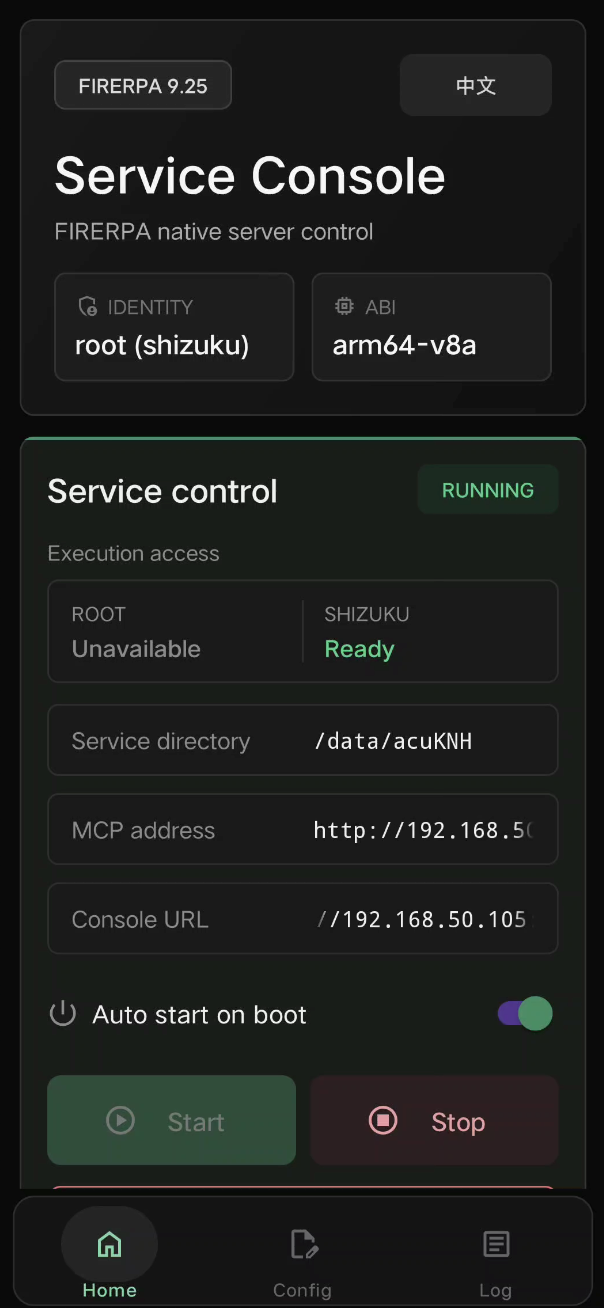

If everything works correctly, you will see the app interface shown above after opening the app. You can click to copy the Console URL and enter that address in your computer browser, which will give you access to the remote desktop shown below. At this point, you have completed the installation.
For Professionals
If you are a professional and find the above installation methods difficult to control or too redundant, you can go directly to the Install Server section. There you can see how to install using a Magisk module, as well as manual installation and startup for system ROM-level integration.
Hint
If you are unsure about something, read the documentation first. If you still have no clue, join the group and ask. You can find contact information in the Technical Support section.
Of course, this is only our most basic installation operation and remote desktop feature. All the features we provide go far beyond this. In addition to app deployment, FIRERPA also supports deployment via manual installation or ROM built-in methods. There are also more APIs and tools for you to use. Continue exploring the following documentation to learn more!