Remote Desktop
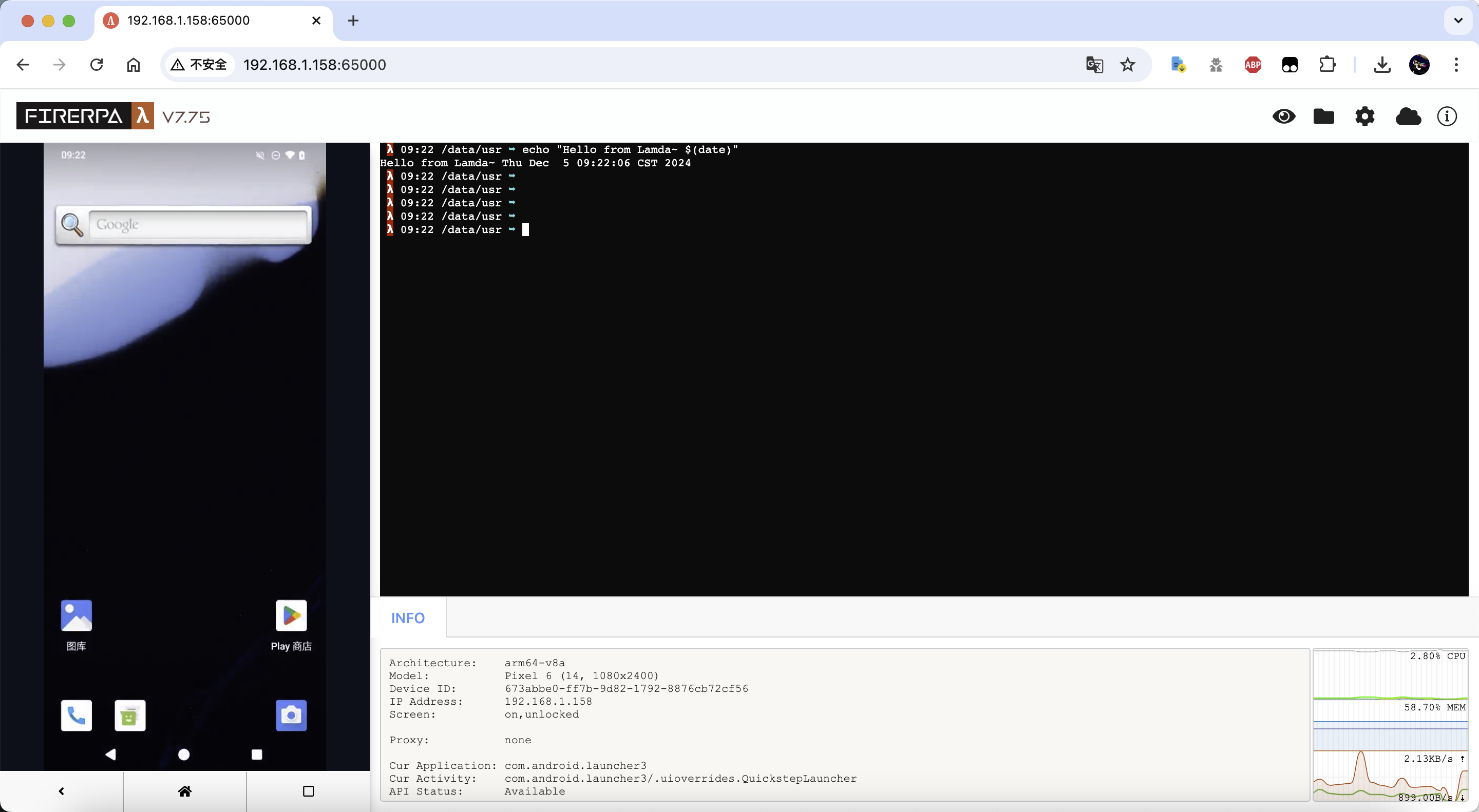
The FIRERPA remote desktop feature provides remote device access within your network or across networks. You can view and operate the device screen in real time as if it were right beside you. The remote desktop is designed for Chrome 95+ and supports simultaneous access by multiple users. It is recommended to use the latest version of the Chrome browser. Port 65000 on the device is the standard public port for this service. Please obtain the IP address of the current device from the WLAN settings (the following examples assume 192.168.0.2)
Open Remote Desktop
You can access the remote desktop by opening the link http://192.168.0.2:65000 directly in the browser. From there you can operate the device screen in real time and execute commands through the built‑in terminal emulator.
Attention
Remote desktop supports concurrent access by multiple users, and the command window is also shared. Connecting too many users at the same time may cause stuttering.
If you specified a service certificate when starting the server, the remote desktop will require a password before you can proceed, and you must change http:// in the link to https:// to access it over HTTPS. After opening, you still need to enter the password to continue. You can open the generated service certificate with a text editor and find the default login password in the first line. Of course, you can also customize the remote desktop login password by setting ssl-web-credential=12345 in service configuration.
File Upload
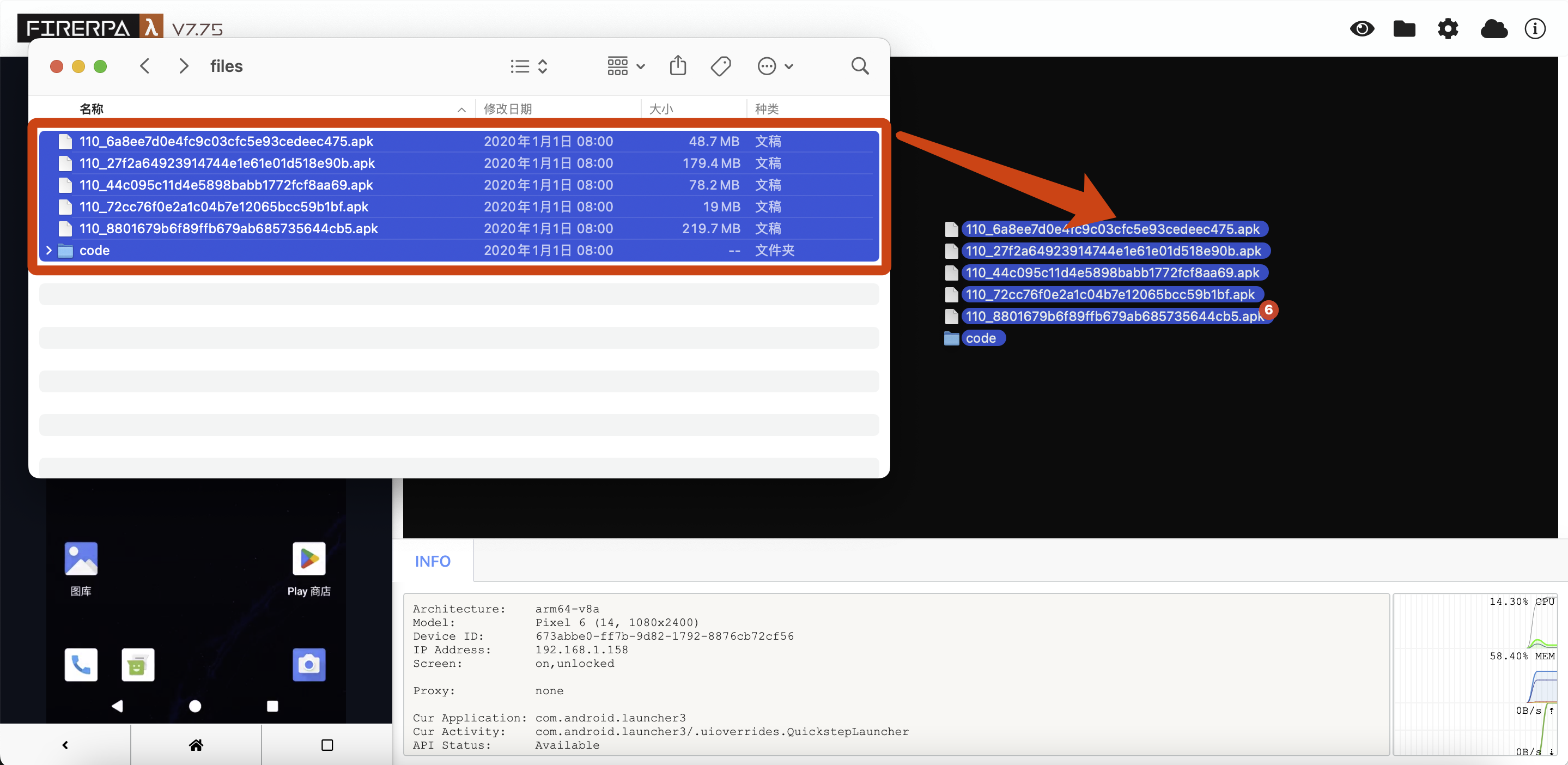
You can upload files directly in the remote desktop. To upload a file or a folder, simply drag the file or directory onto the black terminal area on the right side of the page. Multiple files or folders can be uploaded simultaneously. The size of a single file must not exceed 2 GB, and up to 4,000 files can be uploaded at the same time. Any uploaded file will have a permission of 644 and will always be stored in the ~/uploads directory (or another directory specified in service configuration).
File Download
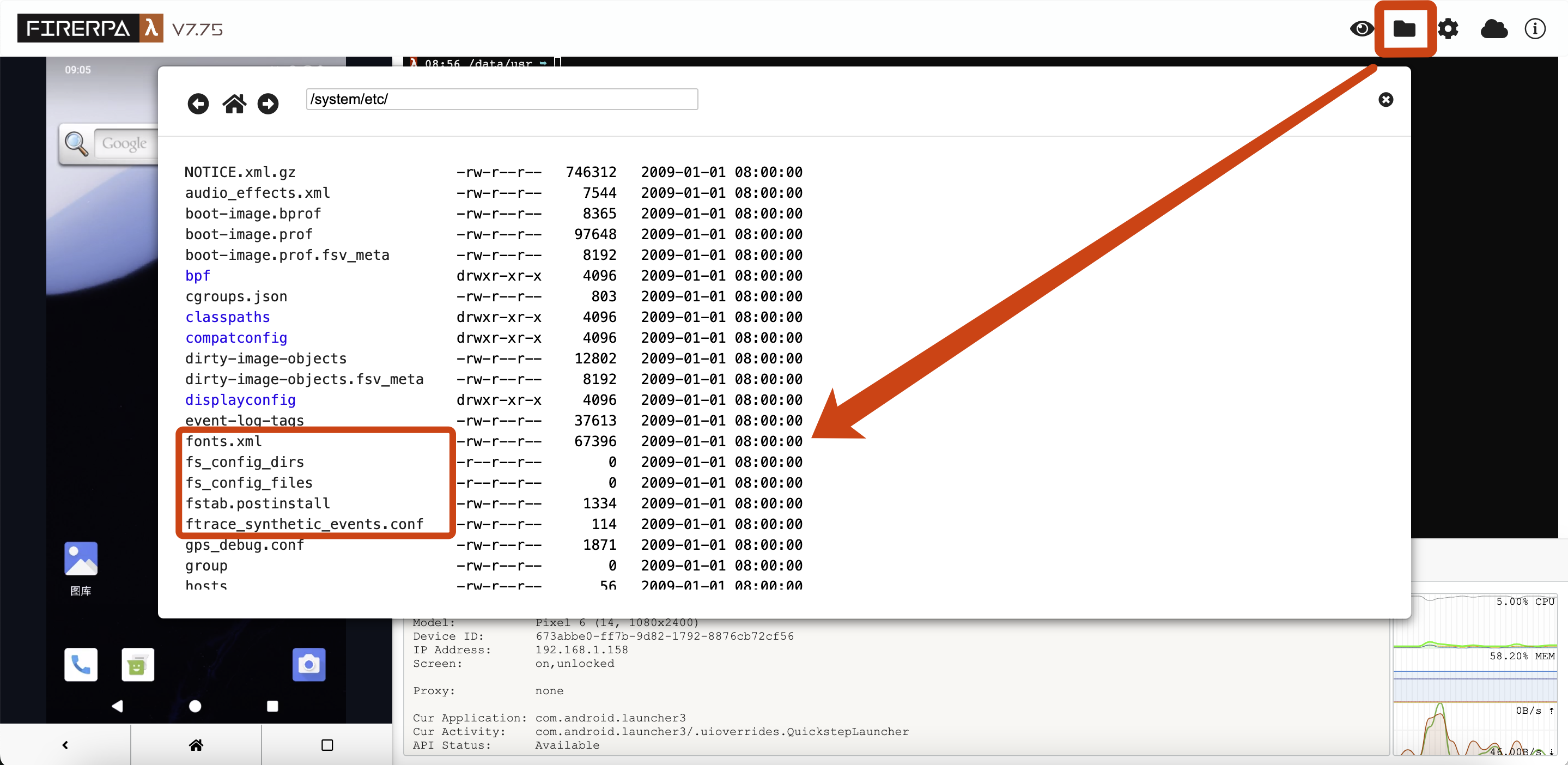
You can open http://192.168.0.2:65000/fs/ directly in your browser (note that it must end with /). From this page you can browse directories or select files to download. Alternatively, you can click the folder icon in the upper‑right corner of the remote desktop, choose the file you want to download, and click to download it.
Remote Desktop Settings
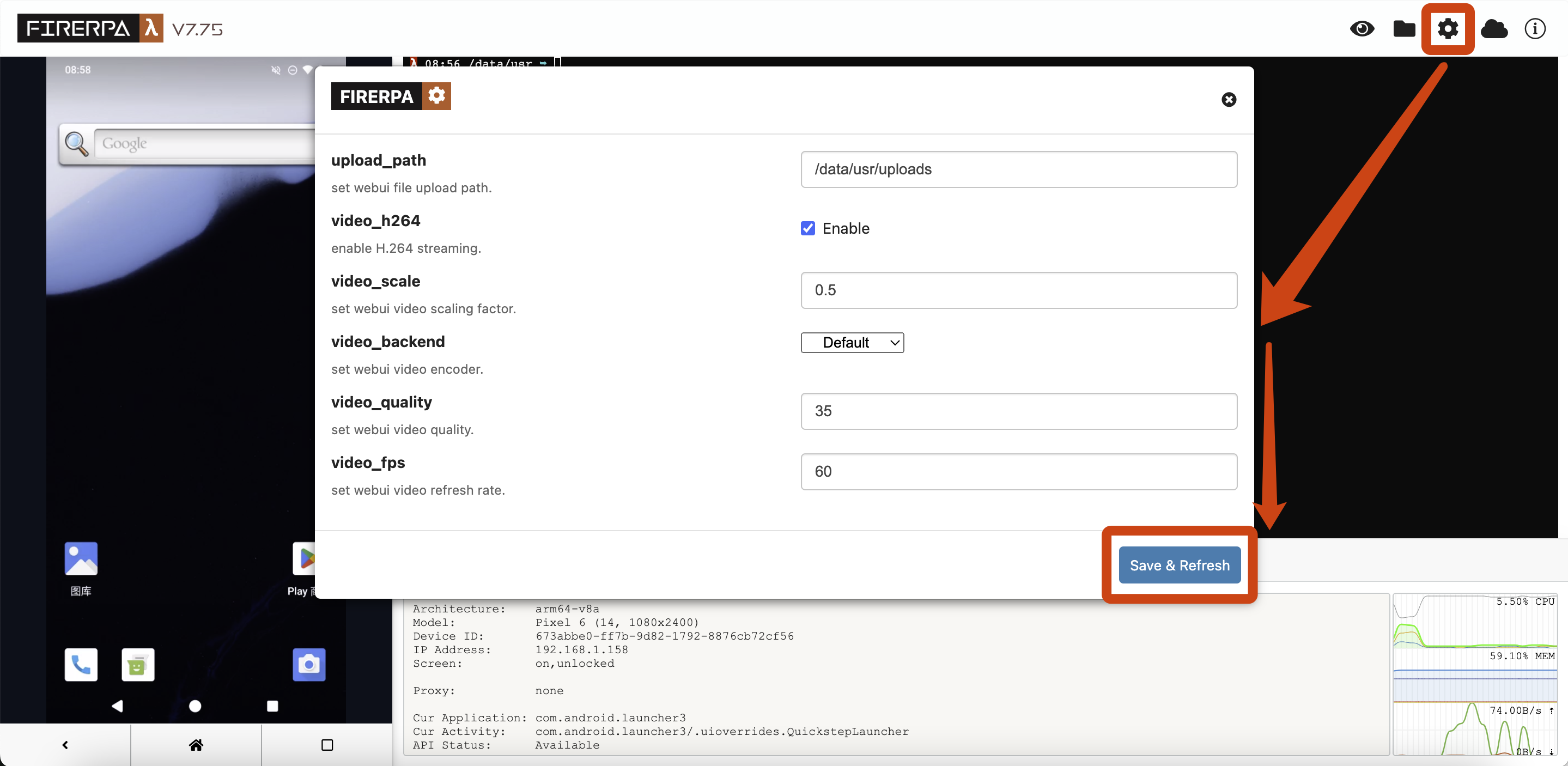
After logging into the remote desktop, click the gear icon in the upper‑right corner of the page to open the settings panel. The following options can all be adjusted directly in the interface.
| Setting | Description |
|---|---|
| upload_path | The directory where files are saved when drag‑and‑drop uploading. Defaults to ~/uploads. |
| enable_darkmode | Switch between light and dark theme for the remote desktop interface. |
| enable_audio | Forward device audio to the browser. Requires Android 10 or higher. |
| share_clipboard | Synchronize the clipboard between the browser and the device (HTTPS protocol required). |
| enable_webrtc | Enable WebRTC transport. This usually reduces latency and improves smoothness when accessing over the public internet or across regions. |
| ice_server | Set the WebRTC STUN/TURN server. |
| video_h264 | Enable H.264 video encoding. Saves bandwidth; do not force enable if the device encoding performance is insufficient. |
| video_backend | Choose the encoding implementation: Default for software encoding, System for hardware encoding. |
| video_scale | Scaling ratio of the original screen. It is not recommended to adjust unless the device resolution is too low (e.g., below 720p). |
| video_quality | Lower values result in lower bitrate, which usually makes the picture smoother. |
| video_fps | Desired frame rate, adjustable between 10 and 60. |
Hint
By default, the remote desktop streams the screen via WebSocket. The above parameters are not necessarily "higher is better". Adjust them gradually according to device performance, browser version, and network conditions. If enabling H.264 or hardware encoding causes stuttering or screen artifacts, disable H.264 or lower the resolution scaling and frame rate.