MCP / Agent Integration
This article introduces how to connect FIRERPA with large language models (based on MCP or commands). FIRERPA has implemented the MCP server protocol and OpenAI native tool call functionality at the underlying layer, supporting you to write your own MCP plugins served through the standard port 65000, or inherit the Agent class to achieve fully automated tool calls. We have also built in an automated MCP service.
Built-in Agent Command
Using the built-in agent command, you can quickly complete fully colloquial tasks through large language models, supporting any service provider compatible with the OpenAI API + tool call or self-hosted services. Combined with the built-in crontab, you can schedule colloquial tasks to run automatically.
Hint
The agent command needs to be used within the built-in terminal, and you need to provide a valid API endpoint and key. The performance of different large models may vary; please choose the one that suits you best. We recommend Gemini, OpenAI, DeepSeek, GLM, etc.
| Parameter | Type | Required | Default | Description |
|---|---|---|---|---|
--api | string (str) | Yes | - | API endpoint |
--model | string (str) | Yes | - | Model name |
--temperature | float | No | 0.2 | Model sampling temperature |
--key | string (str) | Yes | - | API key used for authentication |
--vision | bool | No | False | Whether to enable vision mode |
--imsize | integer (int) | No | 1000 | Image size in vision mode |
--prompt | string (str) | Yes | - | Instruction executed by the agent |
--max-tokens | integer (int) | No | 16384 | Maximum number of tokens to generate |
--step-delay | float | No | 0.0 | Delay time between steps |
Attention
Note that the address of the --api parameter is the base_url.
After preparing the required information, you can enter the following command in the remote desktop terminal to let the AI automatically operate your device.
agent --api https://generativelanguage.googleapis.com/v1beta/openai/ --key YOUR_API_KEY --model gemini-2.5-flash --prompt "Help me open the Settings app, package name com.android.settings, find network settings, and enable airplane mode"
If your task prompt is too long, you can also provide the model prompt through a file.
agent --api https://generativelanguage.googleapis.com/v1beta/openai/ --key YOUR_API_KEY --model gemini-2.5-flash --prompt /path/to/prompt.txt
Claude & Cursor Integration (MCP)
This section introduces how to integrate FIRERPA's MCP functionality into large language model clients. We use Claude and Cursor as examples, and you can also use it anywhere else that supports the MCP protocol.
Note
The built-in MCP service of FIRERPA supports tool call, resource read, as well as prompts, progress notifications, and logging.
Using the Official Extension
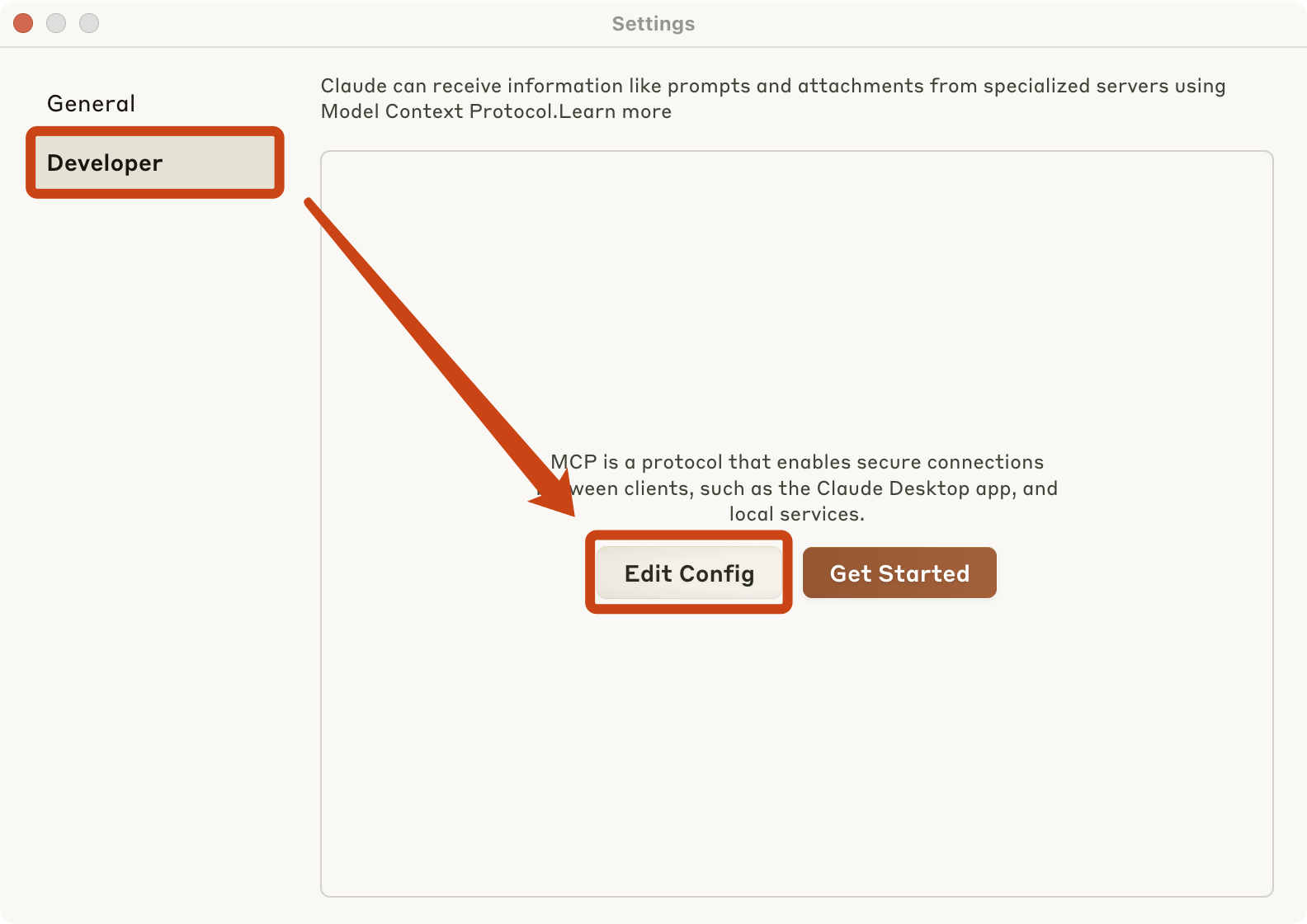
For Claude, you need to first find the Claude settings page and follow the instructions shown in the figure. Then, according to the prompts, edit Claude's claude_desktop_config.json configuration file and write the following MCP JSON service configuration.
{"mcpServers": {"firerpa": {"command": "npx", "args": ["-y", "supergateway", "--streamableHttp", "http://192.168.0.2:65000/mcp/"]}}}
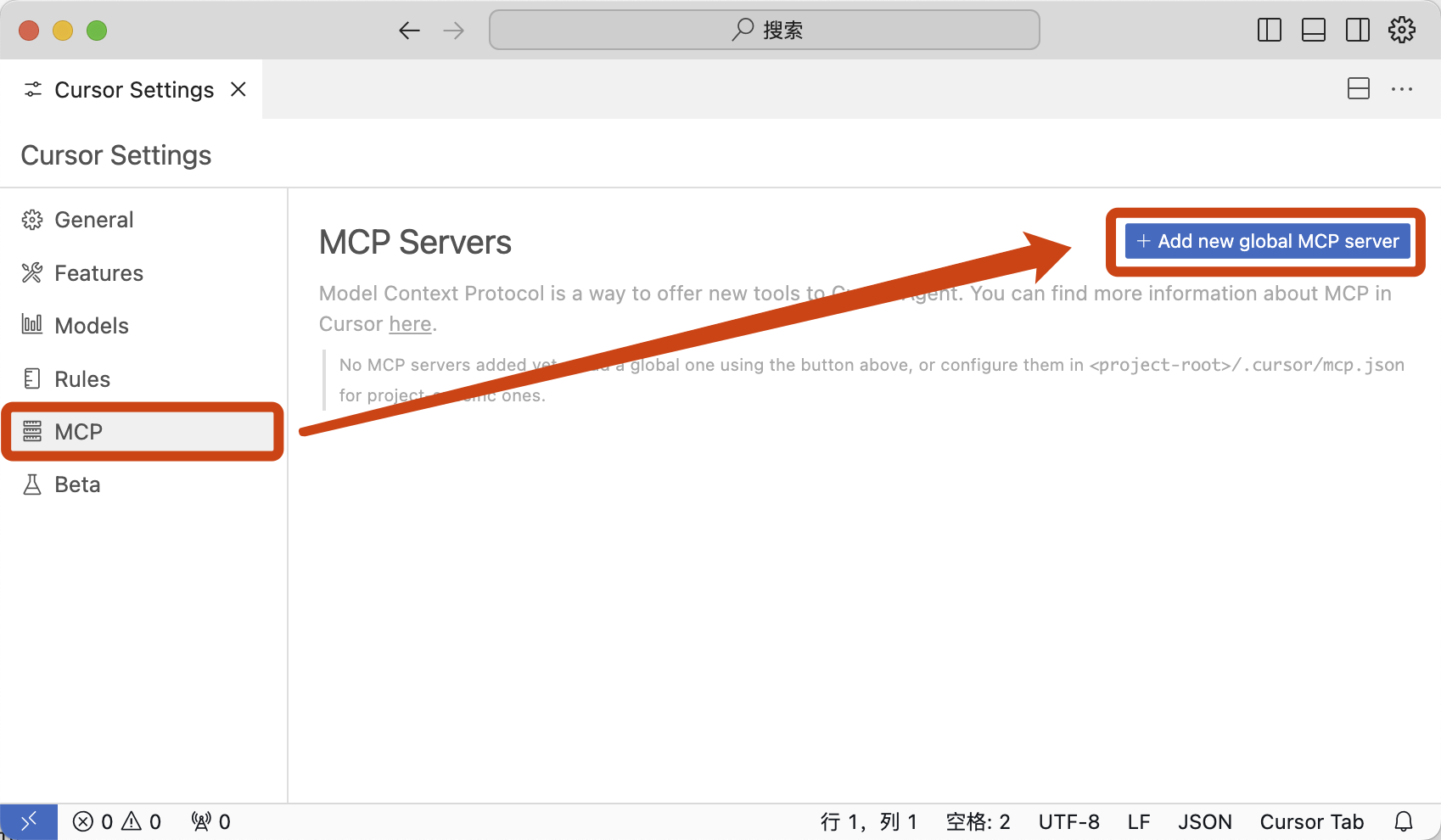
For Cursor, you need to open Cursor Settings, follow the instructions shown in the figure, and enter the following configuration.
{"mcpServers": {"firerpa": {"url": "http://192.168.0.2:65000/mcp/"}}}
Attention
Please replace the address in the configuration with the IP address of your own device.
Writing MCP Extensions
We provide you with a sample MCP plugin, which you can download at examples/user-home/modules/extension/firerpa.py. You can refer to its implementation to write or extend plugin functionality on your own. After downloading the extension plugin script, upload it to the ~/modules/extension directory on the device via remote desktop or manual push, and restart the FIRERPA service. FIRERPA's MCP extensions are deployed as Python scripts in the ~/modules/extension directory on the device and are automatically loaded after the service restarts.