FIRERPA PIGEON
all devices at your fingertips
Built for cross-network distributed management: unify devices across networks, data centers, and offices and keep them online. Debug live, then write, dispatch, run, and manage scripts from one place.
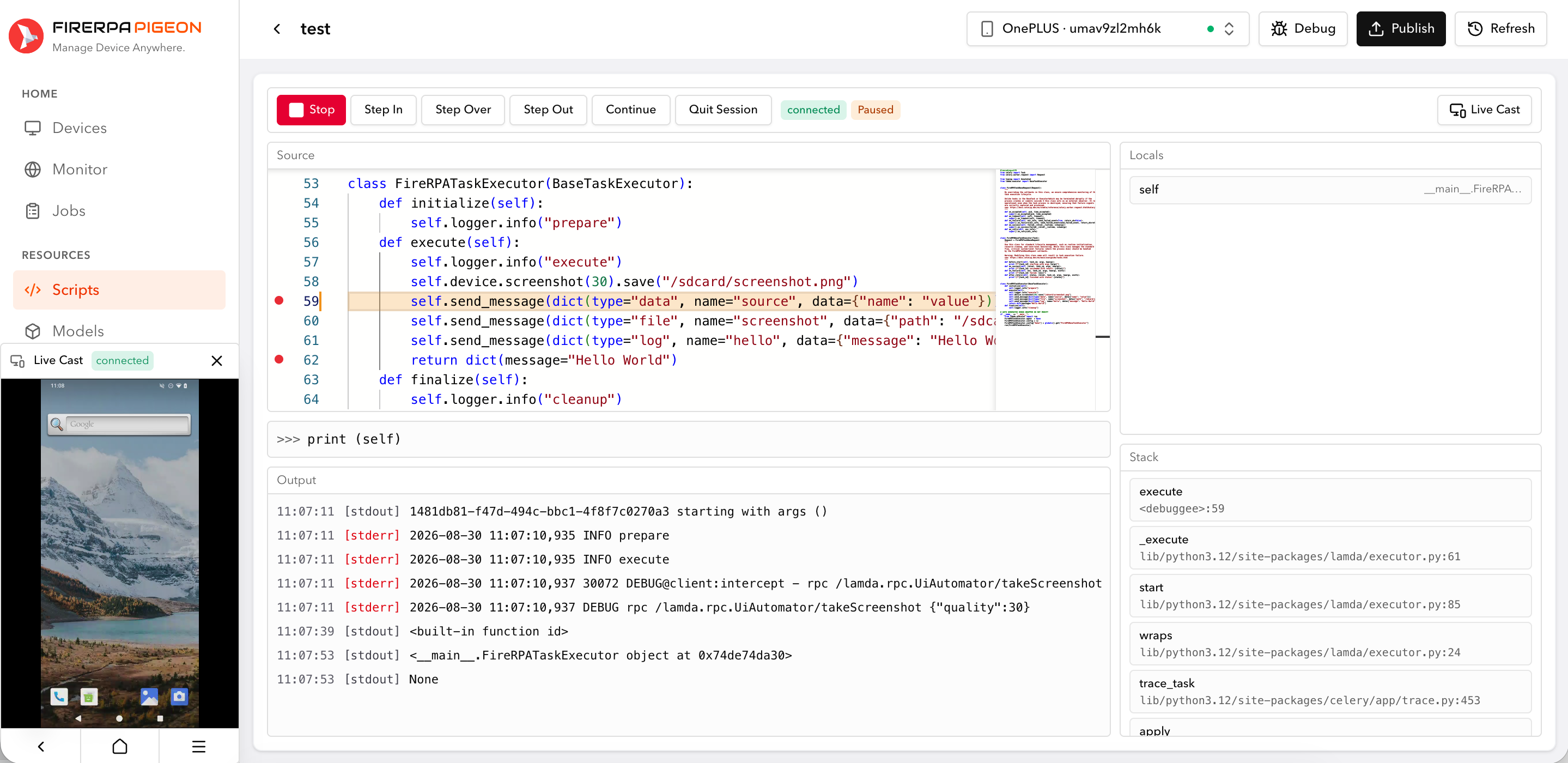
Remote desktop
real-time control

Access device screens directly in the browser with real-time multi-touch, audio streaming, H.264/MJPEG encoding, low-latency WebRTC video, file transfer, clipboard sharing, and terminal access.
Live screen
web remote control at a glance
File transfer
drag files to upload, click to download
Interactive terminal
web terminal with ADB within reach
Quality tuning
controllable parameters, worry-free use
AI Agent

turn natural language into device actions
Built-in MCP server endpoints connect Claude, Cursor, or any compatible client so models can observe, click, type, and execute tasks on devices. PIGEON hybrid scripts can also bring AI into exception handling flows.
Developer API
control device fleets in Python
The Python API covers app operations, file I/O, command execution, KV storage, system properties, device status, and service logs for testing, collection, forensics, and business automation, with one platform to take workflows further.
from lamda.client import *

d = Device("192.168.0.2")
d.application("com.example.app").start()
d(text="Login").click()
d(resourceId="com.example:id/input").set_text("hello")
d.screenshot().save("screen.png")
UI Automation
selectors for text, resourceId, description, layout inspection, and traversal.
MITM Capture
one-click proxy and certificate setup with per-app capture and upstream proxy.
Frida Integration
built-in Frida, Hook RPC, reporting, persistent scripts, and spawn injection.
Mobile Proxy
use the device network as an HTTP proxy exit so remote phones can still reproduce the same network conditions.
OCR / Image Match
PaddleOCR, EasyOCR, SIFT, and template matching for non-layout scenes.
Security & Reversing
script encryption, SELinux, binary patching, and encrypted SQLite database access.
Ready to take control of your Android devices?
We focus on device fleets and build for fleet operations. Start with one device and scale to the whole pool with a matching solution at every stage.