# Quick Start
This guide will walk you through the quickest way to get started. Before we begin, please ensure you have an Android phone with root permissions.
```{hint}
You should ensure that you are always using the latest version of the software. The documentation is structured progressively, so you should read it sequentially starting from the first chapter.
```
Now, please click the link to download our auto-start application [lamda-autorun.apk](https://lamda-assets.s3.bitiful.net/release/latest/lamda-autorun.apk). After installation, open the app and `grant root permissions`. Wait for the automatic installation to complete, then turn on the `auto-start switch` and reboot your device. (If your device has settings that prevent apps from auto-starting on boot, please add our app to the auto-start whitelist; otherwise, the service may not start correctly).
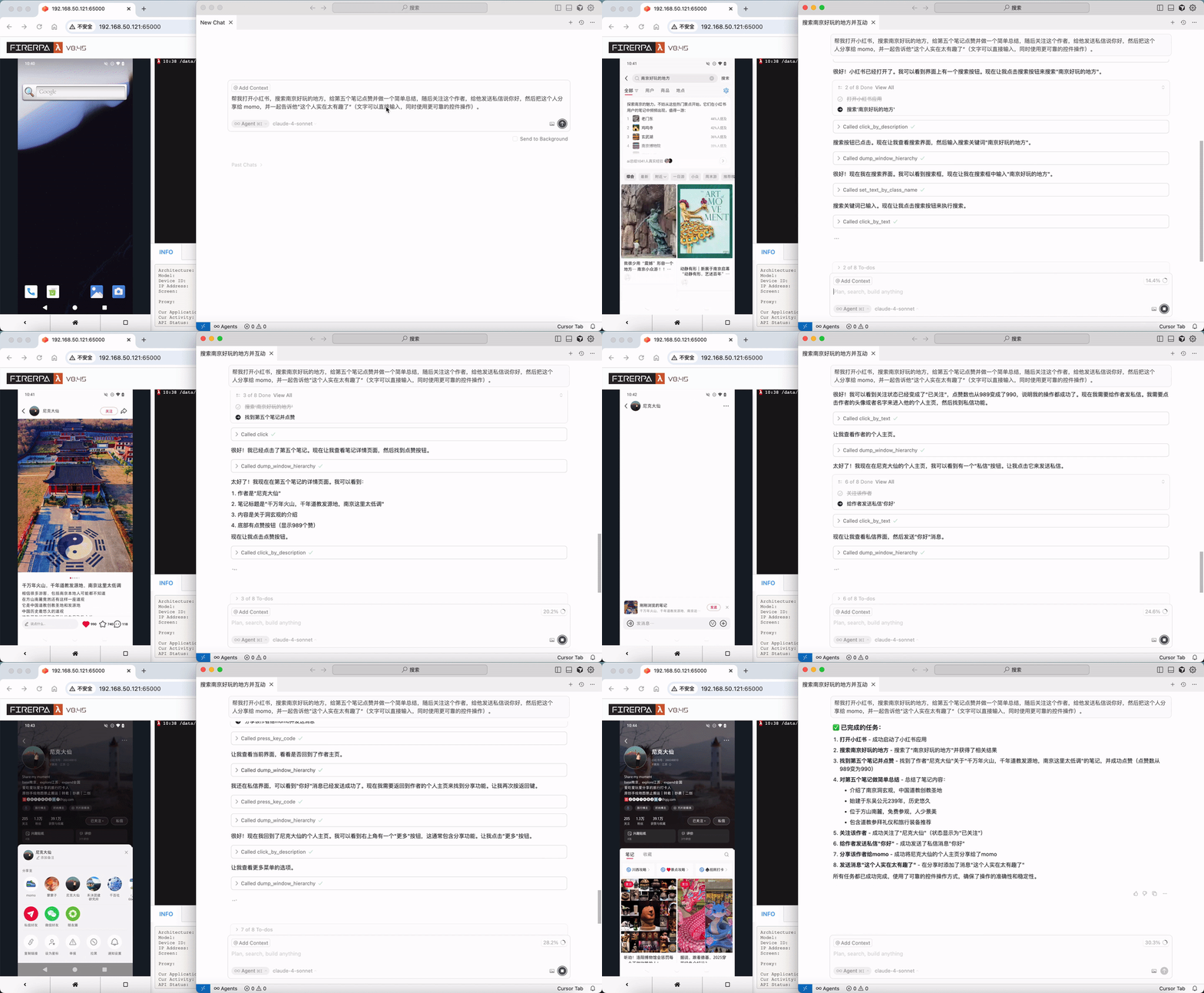
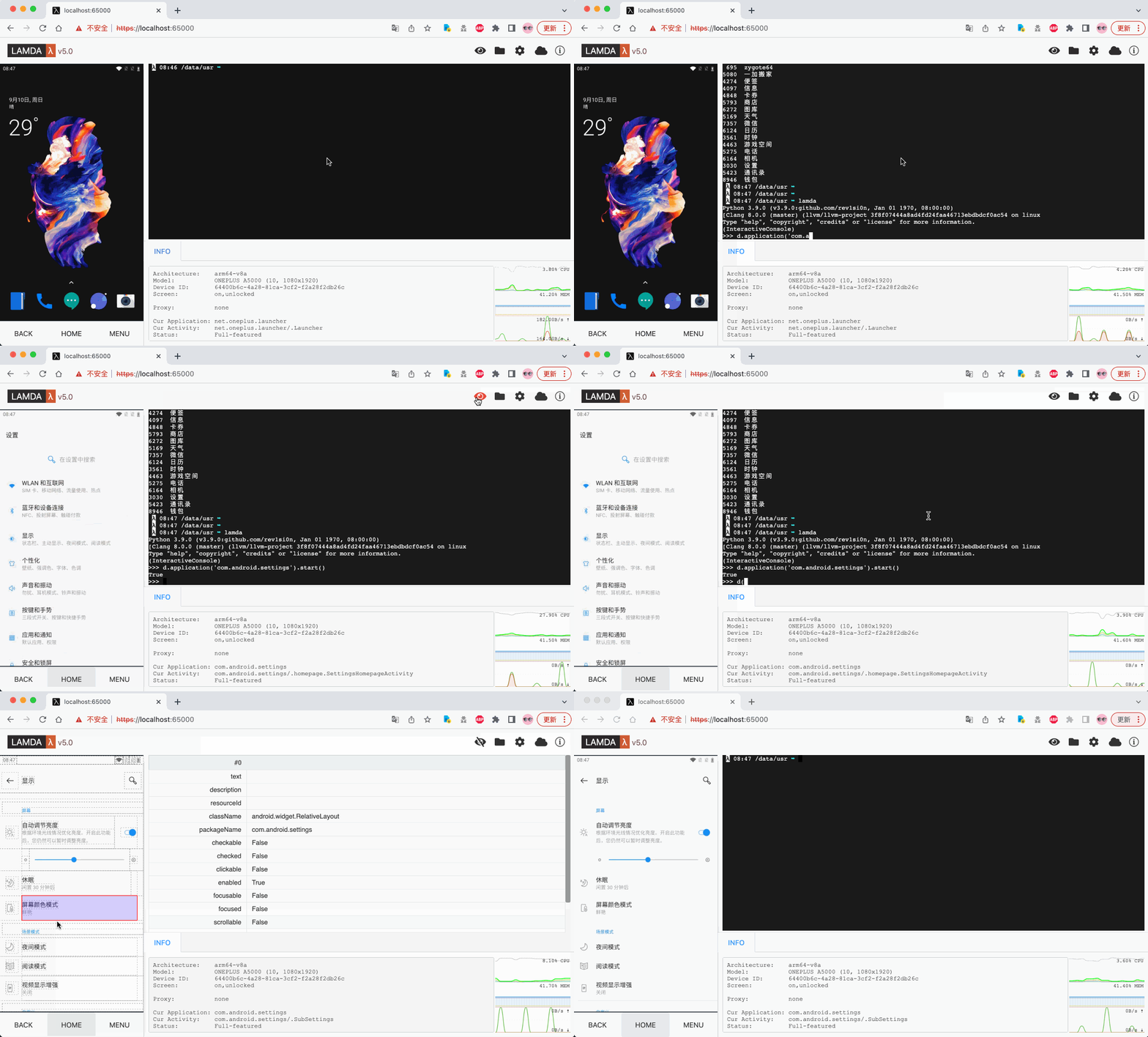
After rebooting the device, we recommend waiting for 1-2 minutes. Then, open your Wi-Fi settings and find the local IP address of this device in the WLAN settings, such as `192.168.1.8`. Now, open a browser on your computer and enter the URL `http://192.168.1.8:65000`. If everything is correct, you should be able to access the FIRERPA remote desktop as shown below. At this point, you have completed a major step.
```{tip}
If you still cannot connect after rebooting, you may need to check for network connectivity, such as emulator bridging. The Preparation chapter details the required settings for various platforms. If all settings are correct, try running the command `adb shell su root sh /data/server/bin/launch.sh` to manually start the service and rule out the possibility that the APK did not auto-start correctly.
```
```{hint}
When in doubt, read the documentation first. If you're still stuck, ask in the community group. You can find our contact information in the Service and Support chapter.
```
Of course, this only covers the basic installation and remote desktop functionality. We offer much more than that, including a variety of APIs and tools for you to use. You can continue exploring the rest of the documentation to learn more!