BEGIN_TRANSLATE
# Service Configuration
## File Format
We need to explain the parsing logic of the server when reading the service configuration to avoid confusion. The service configuration uses the standard **ini** format, and must contain a `[DEFAULT]` section. You can write configuration items directly in the DEFAULT section, or create your own sections for grouping, making it easy to know where a configuration comes from rather than having everything mixed together.
Now let's consider the following configuration. You can see that each section has a `port` configuration, which is allowed. The service will ultimately use `65001` as the port. Because if there are duplicate configurations in different sections, the server will use the configuration from the last section when reading. Therefore, if you feel that a configuration is not taking effect, check whether it is being overridden by a later configuration.
```ini
[DEFAULT]
port=65000
[abc]
port=65001
```
So, following this standard, you can also group configurations for each service, for example like the following, creating a section for the `fwd` service.
```ini
[DEFAULT]
port=65000
[fwd]
fwd.enable=true
fwd.host=123.123.123.123
fwd.port=9911
fwd.token=abc123
fwd.rport=8080
```
## Configuration Methods
Below we introduce several ways to configure the service. Generally, we recommend using the WebUI for configuration, as it is the least error-prone. However, if you have higher requirements such as batch deployment, the WebUI may not suit you, and you can refer to **Manual Configuration**.
### In-App Configuration
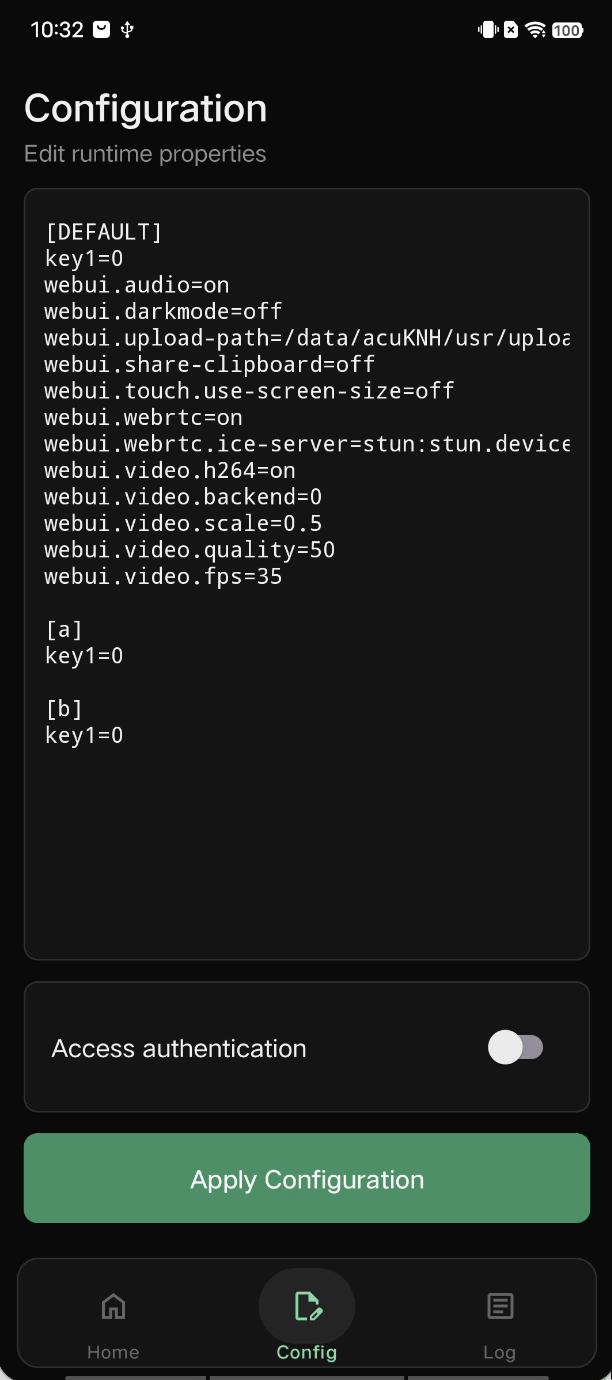
In-App configuration is relatively simple, but you need to write the configuration file in advance and copy it as text to the phone where the app is installed. After opening the app, go to the configuration page, paste the configuration string into the edit box, and click the apply configuration button. However, you must ensure to keep the `[DEFAULT]` section. Of course, if you worry about mistakes, you can also configure via the WebUI.
### WebUI Configuration
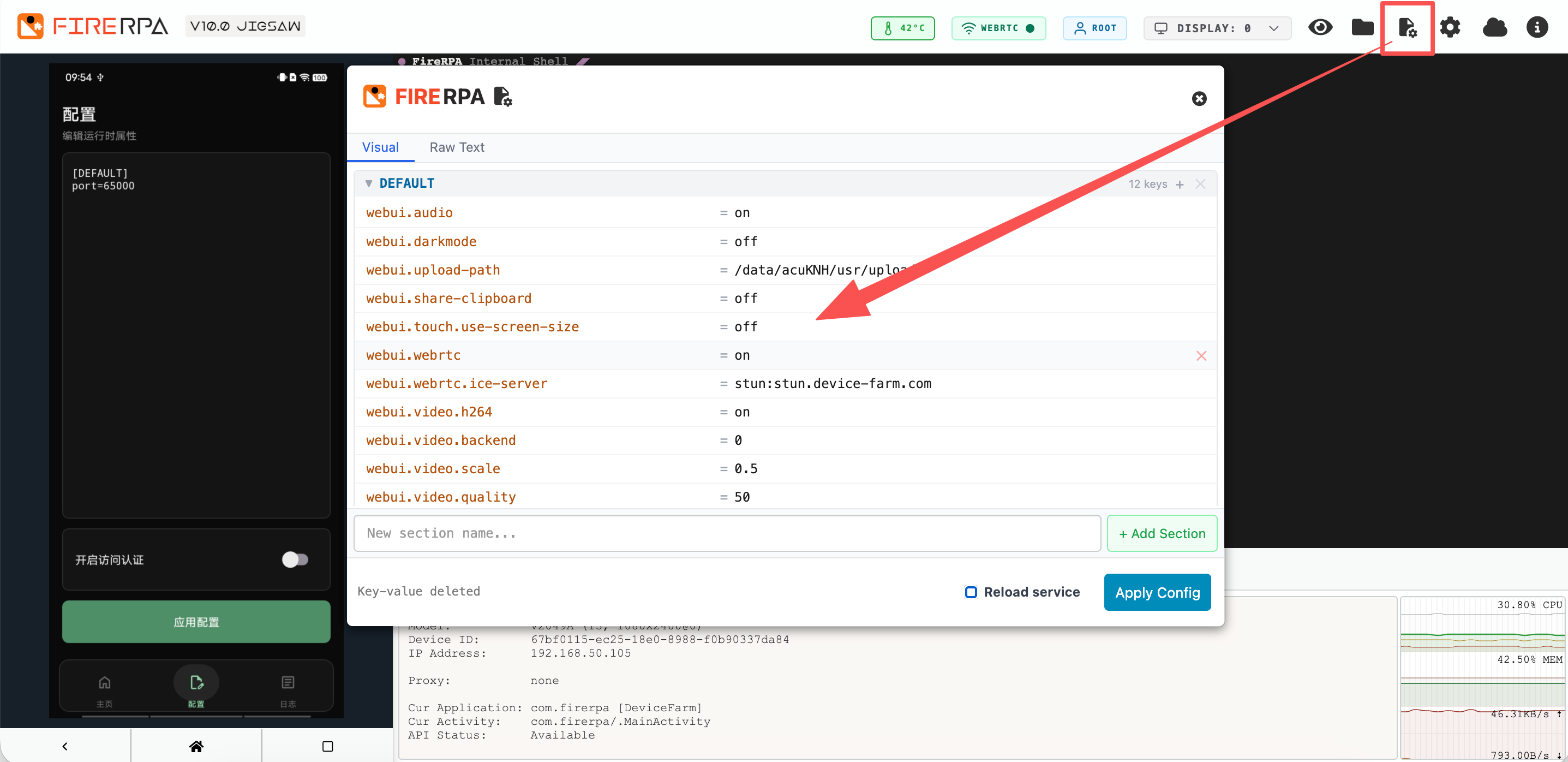
You can directly open the WebUI remote desktop and click the configuration icon in the upper right corner to configure, as shown in the figure below. You can perform visual editing or click the `Raw Text` mode for text-mode editing. After configuration, you can directly click `Apply Config` to save the configuration. However, service-type configurations such as proxy, FRP, etc., will not take effect immediately. If you want them to take effect immediately, check `Reload Service` before clicking the `Apply Config` button, which will completely reload the server, and your remote desktop will temporarily disconnect.
### Manual Configuration
For manual configuration, you need to ensure that the configuration file format is valid; otherwise, the service will not use your configuration. First, you must ensure that the configuration file contains a `[DEFAULT]` section, even if that section may have no configurations. Second, make sure the editor you use does not add extra hidden characters; do not use basic editors like Notepad. A valid configuration file should use UTF-8 encoding and strictly ensure line breaks are `\n` or `\r\n`. We recommend using `\n` as the line break. An example configuration file is as follows.
```ini
[DEFAULT]
[fwd]
fwd.enable=true
fwd.host=123.123.123.123
fwd.port=9911
fwd.token=abc123
fwd.rport=8080
```
Or if you find it troublesome, you can just put everything into the DEFAULT section, which is also perfectly fine.
```ini
[DEFAULT]
fwd.enable=true
fwd.host=123.123.123.123
fwd.port=9911
fwd.token=abc123
fwd.rport=8080
```
After your configuration file is written, you need to manually place it in a specific directory on the phone. By default, there are two cases: if your server is intended to start as root, the configuration file should be stored in `/data/usr/.local/`; if as shell, it should be stored in `/data/local/tmp/usr/.local/`. You just need to ensure that the corresponding directory exists; if not, you can create it manually, then rename the configuration file to `properties` and use adb push to the corresponding directory.
```{attention}
```
## Configuration Parameters
The following configuration items are the complete set available for the service. Do not copy this content directly; only select the parts or services you need and copy and modify them. Copying the entire content directly may cause service anomalies.
```ini
[DEFAULT]
port=65000 ; Set the service listening port.
; webui.* keys are only allowed in the DEFAULT section. You can preset various parameters for the remote desktop.
webui.darkmode = off ; Whether to enable the dark theme for the remote desktop.
webui.audio = on ; Whether to enable remote desktop audio (requires Android 10+).
webui.upload-path = /data/local/tmp/uploads ; Set the default directory for drag-and-drop uploads on the remote desktop (the directory must exist).
webui.share-clipboard = off ; Whether to enable bidirectional clipboard sharing on the remote desktop.
webui.touch.use-screen-size = off ; Use the original screen size to calculate touch coordinates (enable only in special cases).
webui.webrtc = on ; Whether to enable WebRTC for the remote desktop.
; Set WebRTC STUN/TURN server addresses (multiple addresses separated by commas).
; Example stun server: stun:stun.device-farm.com
; Example turn server: turn://user:pass@example.com:3478?transport=tcp
webui.webrtc.ice-server = stun:stun.device-farm.com
webui.video.h264 = on ; Whether to enable H264 encoding.
webui.video.backend = 0 ; Set video backend implementation (0=default, 1=hardware).
webui.video.scale = 0.5 ; Set video scaling ratio (0.1-1.0, 1.0 means full resolution).
webui.video.quality = 50 ; Set video quality (10-100).
webui.video.fps = 35 ; Set desired video frame rate (10-60).
; Set the service certificate. It will encrypt your remote desktop and API traffic and enable password authentication. You can obtain the following configuration value by executing 'base64 -w0 lamda.pem'.
cert=TEFNREEgU1NMIENFUlRJRklDQVRFIChDTj10ZXN0LFBBU1NXRD1hMWMwZTNlYTcwN2E1NGRlN2EwZjk1KQotLS0tLUJFR0lOIFBSSVZBVEUgS0VZLS0tLS0KTUlJRXZnSUJBREFOQmdrcWhraUc5dzBCQVFFRkFBU0NCS2d3Z2dTa0FnRUFBb0lCQVFEVmNMWlA5b0xRWkRIRgp5V0pTa2U0Z0crSUpmSCtMWlk0cXUzdS9OckRwSHZCN2k5V01rMWxRL2FMSGI0V3ZqelBLK1RITm9rRzc2MENRClhBTUpWS0dmYXRwcmNLUW93MGhvWDZ2NlhsTVlZUlNRbW9wN3pSaUtnN3ZxKzV2S09DQ2RKcDFlSVNiZXcyTEgKTmYxL3JZelpwa1Q1bHoxTGZkem00eXJBS3VNa0tyZ3pnTzJRcE9CQVdYdmdiWG9BMDdidDdOODZZOGdNZFUwdAp6Ui9EcmhLTi9JMVdYSk11MU4wQW5UbDJRdEhEb0dCN0UyS0xpdmwybDZJdnRrYWJ4RE55Y2lHbUxOUGlMRklrCllPSHlnMUg3MUJ2NU04NE5TWDc1c2xuOXVNUGUzOVNFVlJoU0ptNHcvT2tXZnA5dGpZRUx3dHphdFhoSWJoS3MKaC9OZU1lOWRBZ01CQUFFQ2dnRUFCYlFuWUdlcFdKYjAydURtSnhLNGx2OFNhL0o1dzJpSldMYjk0dW1SUExRKwpTa1E5c1Zpc0JiQU1JNHc2dWFyNEFBVTh3WGxaTndPekMvM2V6dWNHRXFreEFReXM0VDB4SXRPUkF2WExxVlowCkl1WnpxNW53Si9OeFFzeEtmaWhBZkRLYlRmZjdmcG5MWlV0dlpNbG5LWUhQVExtRlFua3drckwyRE5YdDVVOTYKYXJUUDVOY0x1aDQ2dU93alJUOWhaNytYQi9ubU9LeTV4V3hoNWVMQmJJUTJrS0UvdWViUlVYRGZNdG5tbTh2aApRSG9VM3N5dzlZcE1xRDlWQWppcGlqQXRwbUlwa2w1emRWSE52Q1dCSGk2NjZxKzF6cUpHeFVUODBseHo1N2R1ClRvRFFQc1l0OFFEL3ZjNGkxajd0bDZyRzNQWkJNM05LNVR5ZFYyRnlnUUtCZ1FEYUcycnV3aWxyYUdZRzZNQWwKNEF2WW1BY0hHQWUwQjR0ZmtkdS9QandlRWQyWUF2TjJIQWV1Z1ZUSWg1eFplUlIwNFE4ZVNGenBTaEpwREpkNAp1TEhHcXJ2cmpXL1greEVIc081NnNjNjRiem1weWJWQXBlQnA4NlFGSTk4V3FmZkFyN3FzbzhweFJjNmdTRU1uCk5TcXV1Z2psYU05TlJmcUo4ci82RklmQkxRS0JnUUQ2aGJ0Z2dIdVJoTHhHYWNNaERvOVppcXJlNi9HN1dvZnQKR2FGZmFQM2xZNTNmM0hPdSsyNTZMWDY1ZWFYRTdrbXlQOGRDM2VWL24xT3dvTHdBYm1BZ2pEWVd1N09KdGk4QQpPbG9VNmtnTkVwNWcwOHpVWlBaR3NSMkZMd2VpUkgrQ3ZOdFBZakJydmFIQUtVU2lLa3BKdEpWeFpIdUl6SlpGCjVUZkM2VjNrOFFLQmdEeWp0TlpPKzA4V2hvOVROT0VTNnBnOHBHK1BlY3pPOEN3UkZJU1dYQWFNTnd6bGZTVVEKWS81YmpPUDMrRHRVRTZEdlZkRzRrc1IxeUtxV1NxTFF6dlNLVVpjTEN0YUV3bFplRmQvZEFibDdpdyt1dWdzUQpVMVdCM005bENzaDFWeUdtZWdNM3dyZzlqVlk0NFJyTWlHSnQ3TDFEcDZjM1ZwSDJBUFFac3lpOUFvR0JBTk9pCmpmeWtEYitNNXBDRllEWlkybmpHVURzcUQzZzZyb0Y2R1gxRWNOaU1JeDZ1V1h3RkkvdEsyN2RNTU9JQWUzbDkKcjVPcGFPczdhYlBZMVhsM3hQVTUvYWVPd2NrZ2d1d3FYMWN6NDlKSFhFeG9JSzE4N1NBakY5RWZQYyt6RmhVWAovaDA5MGJIeTdPWXM5cklZRDlIY0lETStzNjJKUjVtY1hsTG1Xay9CQW9HQkFKRVhQV05IWEwra1l6My91R1c3CnRKd0hUQzFlbEJjclcvaHpJMWt4ZEhXem5VaXNTWlcyVnA5b0wwSWNrQXVWQkx6eGUvR1h6OGJRTjZkOWwyZDAKdGtmUmo1TmpDOTUzS2N1cTNSekRmVU40cTcyUlVWTWlFOHVvSTBkVVZpalczN0tVMEhLcm1pbDBocU01eW9iNQpVZlhPQ2Q5SlRRSWx5Y2dNWER6Tm00S3oKLS0tLS1FTkQgUFJJVkFURSBLRVktLS0tLQotLS0tLUJFR0lOIENFUlRJRklDQVRFLS0tLS0KTUlJQ3FEQ0NBWkNnQXdJQkFnSVJBUHNjMVBRNXBuSDNhNk1GZkdVTXA2WXdEUVlKS29aSWh2Y05BUUVMQlFBdwpFREVPTUF3R0ExVUVDZ3dGVEVGTlJFVXdIaGNOTWpBd01UQXhNREF3TURBeFdoY05Namt4TWpJNU1EQXdNREF4CldqQVBNUTB3Q3dZRFZRUUREQVIwWlhOME1JSUJJakFOQmdrcWhraUc5dzBCQVFFRkFBT0NBUThBTUlJQkNnS0MKQVFFQTFYQzJUL2FDMEdReHhjbGlVcEh1SUJ2aUNYeC9pMldPS3J0N3Z6YXc2Ujd3ZTR2VmpKTlpVUDJpeDIrRgpyNDh6eXZreHphSkJ1K3RBa0Z3RENWU2huMnJhYTNDa01LTklhRityK2w1VEdHRVVrSnFLZTgwWWlvTzc2dnViCnlqZ2duU2FkWGlFbTNzTml4elg5ZjYyTTJhWkUrWmM5UzMzYzV1TXF3Q3JqSkNxNE00RHRrS1RnUUZsNzRHMTYKQU5PMjdlemZPbVBJREhWTkxjMGZ3NjRTamZ5TlZseVRMdFRkQUowNWRrTFJ3NkJnZXhOaWk0cjVkcGVpTDdaRwptOFF6Y25JaHBpelQ0aXhTSkdEaDhvTlIrOVFiK1RQT0RVbCsrYkpaL2JqRDN0L1VoRlVZVWladU1QenBGbjZmCmJZMkJDOExjMnJWNFNHNFNySWZ6WGpIdlhRSURBUUFCTUEwR0NTcUdTSWIzRFFFQkN3VUFBNElCQVFBWEQ0L1cKQjBhSW1aWGpQbTRxUnBOazJmUnpjU1g4MGw2TlZaWWxJV3ZYalFxUXdXZnMvSGczZDVzYUpickFmcWVPa1lQdQpjeXJEWFZPdC9RTEVDOTFBSGtjRWJ1R0dPMGNFU2YyOHdUM1UzRnJJb2cxS1VyTURqWFFIb09vZEJpOGdNaVBmCmROcWhMSTdkNDJBTXJKU3dZUTlSUG9vWG9UZ2xDa0d3R291RDhuS0V5MmNHeVMxM3lQcDRseC9TWTR1QkRFU0sKRlErR0ZRTExGQktQZHZNc2x0cHYyQWFMWmR3clF4aFQ2aTU1U1puNStLb3c1TGxYL0RHdUw5UnRPdmZ2T0tzZQpRZ3pOQUg3QkYzbGdvQmJjYk9yZkVQazY1ZEZRN0NXYi91aDZjVmlmSjdxQzkvL0xhdElmb1VQVnJiRXdZL2dRCk5BRXFYclduMGZuYUc0cUEKLS0tLS1FTkQgQ0VSVElGSUNBVEUtLS0tLQotLS0tLUJFR0lOIENFUlRJRklDQVRFLS0tLS0KTUlJQ2xEQ0NBWHdDQVFBd0RRWUpLb1pJaHZjTkFRRUxCUUF3RURFT01Bd0dBMVVFQ2d3RlRFRk5SRUV3SGhjTgpNakF3TVRBeE1EQXdNREF4V2hjTk1qa3hNakk1TURBd01EQXhXakFRTVE0d0RBWURWUVFLREFWTVFVMUVRVENDCkFTSXdEUVlKS29aSWh2Y05BUUVCQlFBRGdnRVBBRENDQVFvQ2dnRUJBTG5xZkJadnJHWmFxZ2s1bXNDUlJwUHoKcC8rNDY0akJrbmxtVEtldE9ja0RUVXE4VjZmSC8yR2ZiNkhqam9ENXBrQ3RENW1TS2thSE5odXhMWHNGZkVmYwpLbG1ubjNacGp5Tk9IRUEvaUFPMkR5RVlhMDh4U2V2TTdXb2piRjdjTmo1L0RZZzdlYjBpMCsvL2JCbGg4bmxPCmdoU1VoQ1RNNVBDb2ZMRFU4c1ZYdVlBaUdVNlV6QnJJQzB2SEVsdERraUpWTHBjQ3RzS2pFWk9za1BkQWM3dTYKL2FBMFA1R29uWjVVa1JEWXBhK2plSlVhYnFXWlFRRWd0bXZqbG1VVWlYd3UwalJuajFuMFQzZlBRRDNnQStMSQp2QUU5dmd2cFk1WFFqNm90cEJ2c1ozTUpKTktjVU1RdTF6T0FOVHpPMThUbEE4S29CTnNCeThaOURRWktYRjhDCkF3RUFBVEFOQmdrcWhraUc5dzBCQVFzRkFBT0NBUUVBZUduL055cUlSSS8wQUdxdkhQOTdLdFE3NlRqNmFjaGIKMzBMSVhXcCtZSFVhTWVBVmpkMlo3alNRcDVtWlpGbCtrMWZiMzM3SWVhR1hvZlZJMjFlSzUyUVgydGVOb0JrQQovVi9PMUh1MzUvK2FpejB4c2RENndXdndvNEZ5MWpsbWFlSmh3ZFFhY0JsREdGQTJqRkp4dUVwYWhmeFp2VXNiCjNqNXpVMFdLVFVDZkVEZ1hGd0J3MTJ4a3UvN1RNZENFYlJzWWFaM3pGVEMyMjZsUWJVRE43d2VxRndTRCt0QjYKUnVoSXhlOCtjRndBc0FXSENsZXJLZ1pucjN0NVFGMDc4cFcyR0h5OENzSjdWM01aVDVsWjQzbFM1TklCOUp6WgpTWXhaL2l6aFJ5aDVxUjczdUFnc0phTDU2QmorY1Fxbm9UcWhMWlZsN0orTTZXaFdLem9qc0E9PQotLS0tLUVORCBDRVJUSUZJQ0FURS0tLS0tCg==
; Set a custom remote desktop login password, 6-32 characters, easy to remember. This password only takes effect when a service certificate is used.
ssl-web-credential=password123
; Set the Access-Control-Allow-Origin header for firerpa WebUI and its API, allowing you to embed firerpa functionality into your web application.
; See https://developer.mozilla.org/en-US/docs/Web/HTTP/Headers/Access-Control-Allow-Origin
allow_origin=https://example.com
; If the touch screen on the remote desktop shows offset or no response, set touch.backend to system. Available options: system | native (default)
touch.backend=system
; Set the service log file (the directory must exist)
logfile=/data/local/tmp/server.log
; Do not manually write the following configuration. You should use our companion OpenVPN server deployment solution to set it up and use its built-in commands to generate this configuration.
[openvpn]
openvpn.proto=udp
openvpn.cipher=AES-256-GCM
openvpn.host=123.123.123.123
openvpn.port=1190
openvpn.ca=LS0tLS1CRU...
openvpn.cert=LS0tLS1CRU...
openvpn.key=LS0tLS1CRU...
openvpn.tls_encryption=
openvpn.tls_key_direction=
openvpn.tls_key=
; The following configuration items can only be manually configured.
openvpn.global=false ; Whether to enable global VPN.
openvpn.enable=true ; Whether to enable the service true | false
; This configuration is used to make the device automatically use a proxy server on startup.
[gproxy]
gproxy.enable=true ; Whether to enable the service true | false
gproxy.type=http-connect ; Proxy type, options: http-connect, https-connect, socks5, shadowsocks
gproxy.host=172.1.1.1 ; Proxy server address
gproxy.port=8080 ; Proxy server port
gproxy.password= ; Proxy server login password (leave blank if no authentication required)
gproxy.login= ; Proxy server login username (leave blank if no authentication required; if type is shadowsocks, this is the encryption method)
gproxy.nameserver= ; Custom DNS server
gproxy.drop_udp=false ; Whether to drop UDP packets.
gproxy.udp_proxy=false ; Whether to proxy UDP packets (requires proxy support, e.g., socks5, shadowsocks).
gproxy.bypass_local_subnet=true ; Do not proxy local LAN traffic.
gproxy.dns_proxy=false ; Proxy DNS queries through the proxy (requires a DNS server supporting UDP and TCP).
gproxy.uid= ; Only proxy for the specified UID (default is global).
[cron]
cron.enable=true ; Whether to enable the service true | false
[sshd]
sshd.enable=true ; Whether to enable the service true | false
[fwd]
fwd.enable=true ; Whether to enable the service true | false
fwd.rport=0 ; Port forwarded to remote (0 means randomly assigned)
fwd.host=123.123.123.123 ; FRP server address
fwd.port=9911 ; FRP server port
fwd.protocol=tcp ; FRP protocol
fwd.token=abc123 ; FRP login authentication (token)
[adb]
adb.enable=true ; Whether to enable the service true | false
adb.directory=/data/local/tmp ; Default working directory for the built-in ADB (adb shell working directory)
; Warning: If set to true, ADB connections will have root privileges; otherwise, they will have shell privileges. When this option is set to false, you will use a shell similar to native adb shell and will not be able to use built-in commands. Please note that since ADB does not use TLS connections, traffic may be monitored. For security reasons, when the service is started with a certificate, this value defaults to false. However, if you specify it in a properties.local file, that configuration will take precedence, and you are responsible for ensuring security.
adb.privileged=true
[tunnel2]
tunnel2.enable=true ; Whether to enable the service true | false
; Login credentials for the bridge proxy are required only if both login and password are set; if either is blank, no authentication is required.
tunnel2.login=lamda
tunnel2.password=1234 ; Bridge proxy login password
; Outbound interface (rmnet|wlan). When outbound interface is rmnet, the proxy will attempt to forward your requests over mobile data. When outbound interface is wlan, requests will be forwarded over the wlan interface. If left empty, the default network will be used to forward requests.
tunnel2.iface=rmnet
[mdns]
mdns.enable=false ; Enable or disable true | false
mdns.meta=false ; Add TXT metadata for mDNS. When enabled, it supports querying device information like model, ABI, and device ID using tools like python-zeroconf. Disabled by default.
mdns.name=DEVICEID-UNIQUE.lamda ; Set the broadcast domain name using a locally unique ID, defaults to {DEVICEID-UNIQUE}.lamda. If name conflicts in the local network, a suffix ID will be automatically appended.
mdns.service=lamda ; Set the broadcast service name, defaults to lamda, i.e., _lamda._tcp.local.
```